


Document Management
Accessing Documents
After generating documents, you can access them through HubSpot contact records or the Files manager.
From HubSpot Records
- Open the HubSpot record (contact, company, deal, or ticket) for which the document was generated.
- In the property search bar, find the file property you selected during template setup.
- Click the link to preview/download the generated document.
- If the template is set to append files, the property may contain multiple URLs separated by semicolons; the last one is the newest.
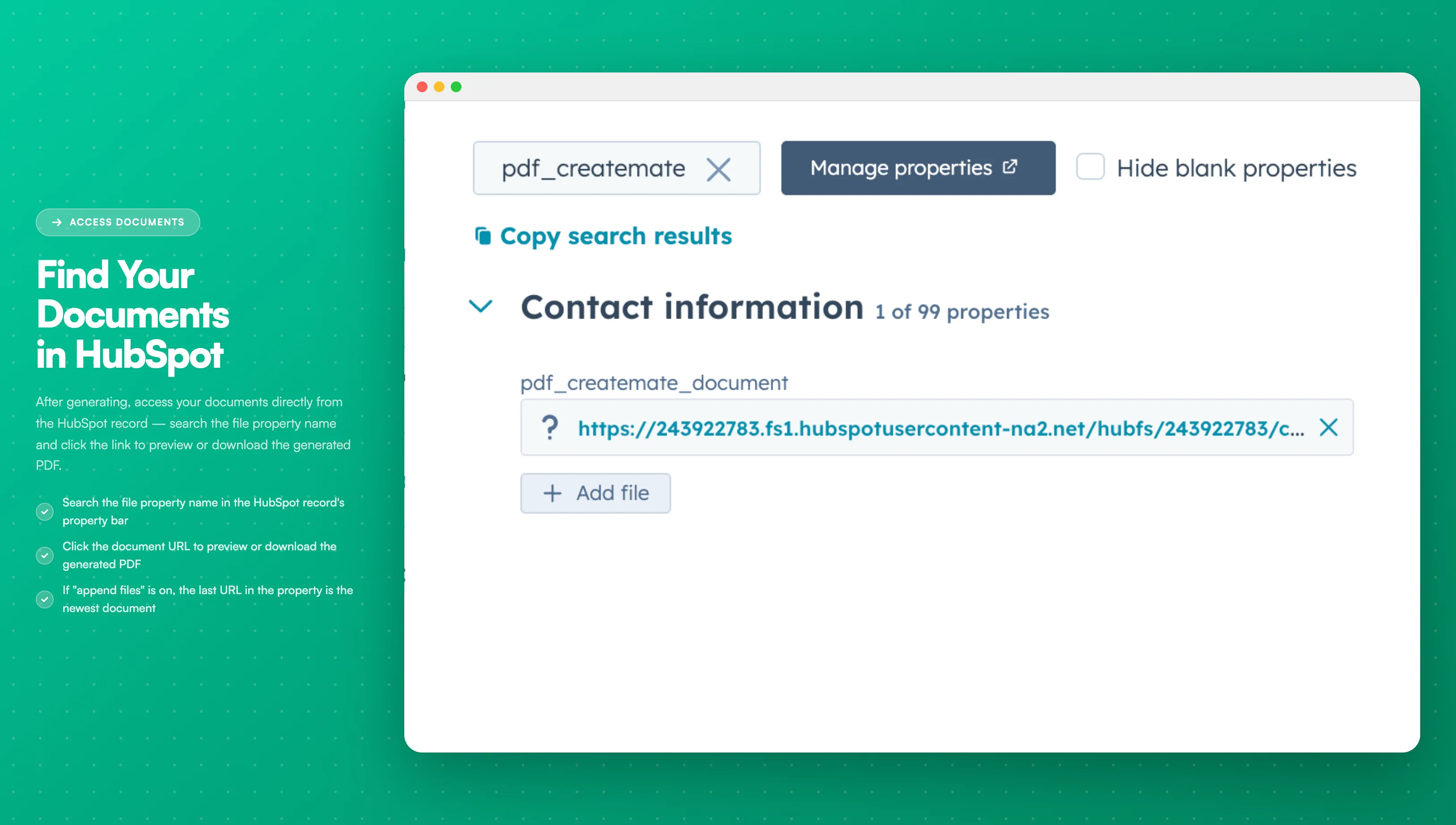
Image description
The contact record screen shows:
- The property search bar with the file property name entered
- The file property displaying a clickable document URL
- The document link leading to the generated PDF
- Property value timestamp showing when it was generated
- The property search bar with the file property name entered
- The file property displaying a clickable document URL
- The document link leading to the generated PDF
- Property value timestamp showing when it was generated
From HubSpot Files Manager
For a comprehensive view of all generated documents stored in HubSpot:
- Navigate to Marketing → Files in the HubSpot menu
- Locate the PDF CreateMate folder
- Browse or search for specific documents
- Download individual documents as needed
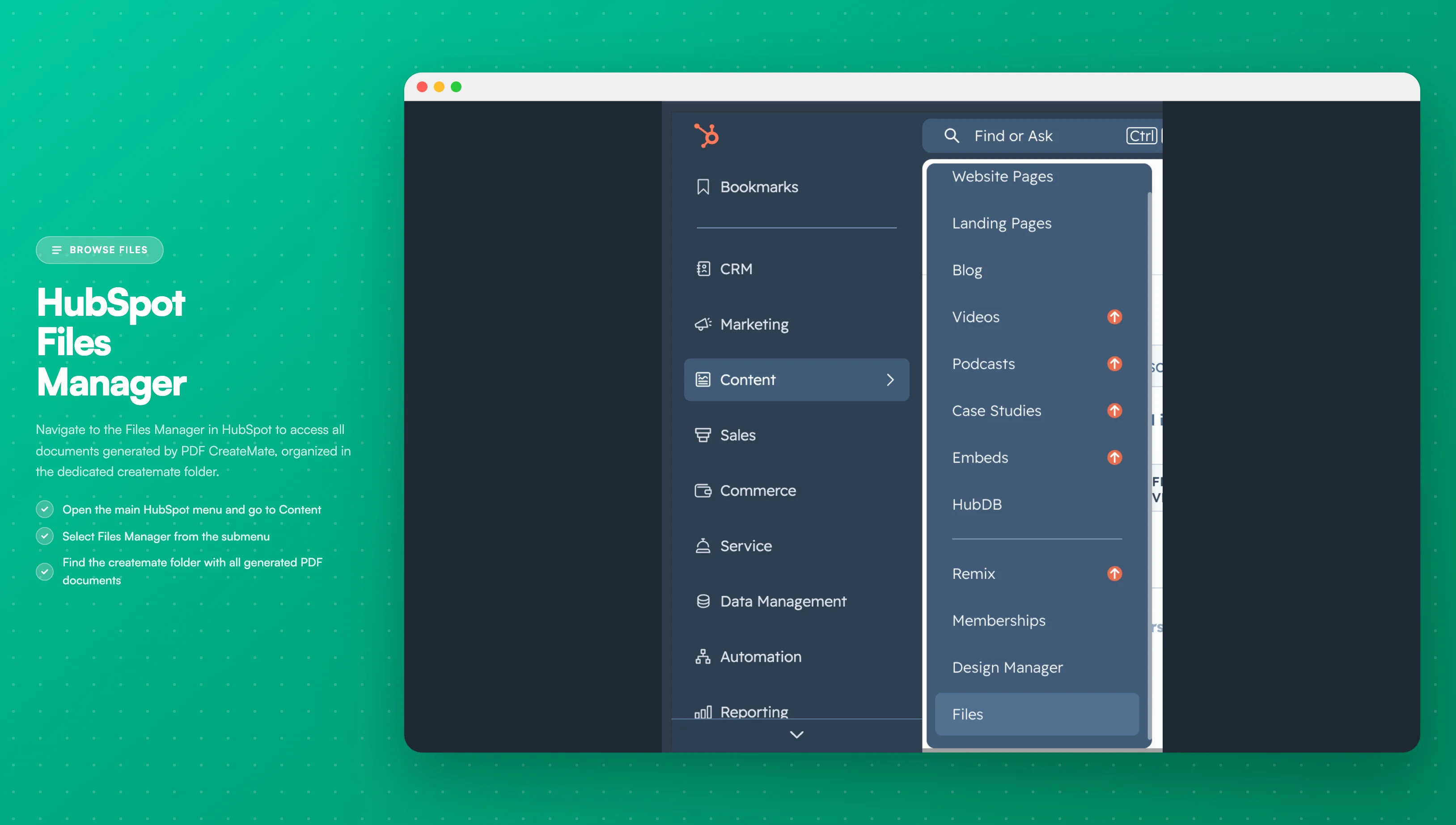
Image description
The HubSpot navigation menu displays:
- The main menu expanded
- "Files" option under Marketing or Library section
- Navigation path to access all stored files
- The main menu expanded
- "Files" option under Marketing or Library section
- Navigation path to access all stored files
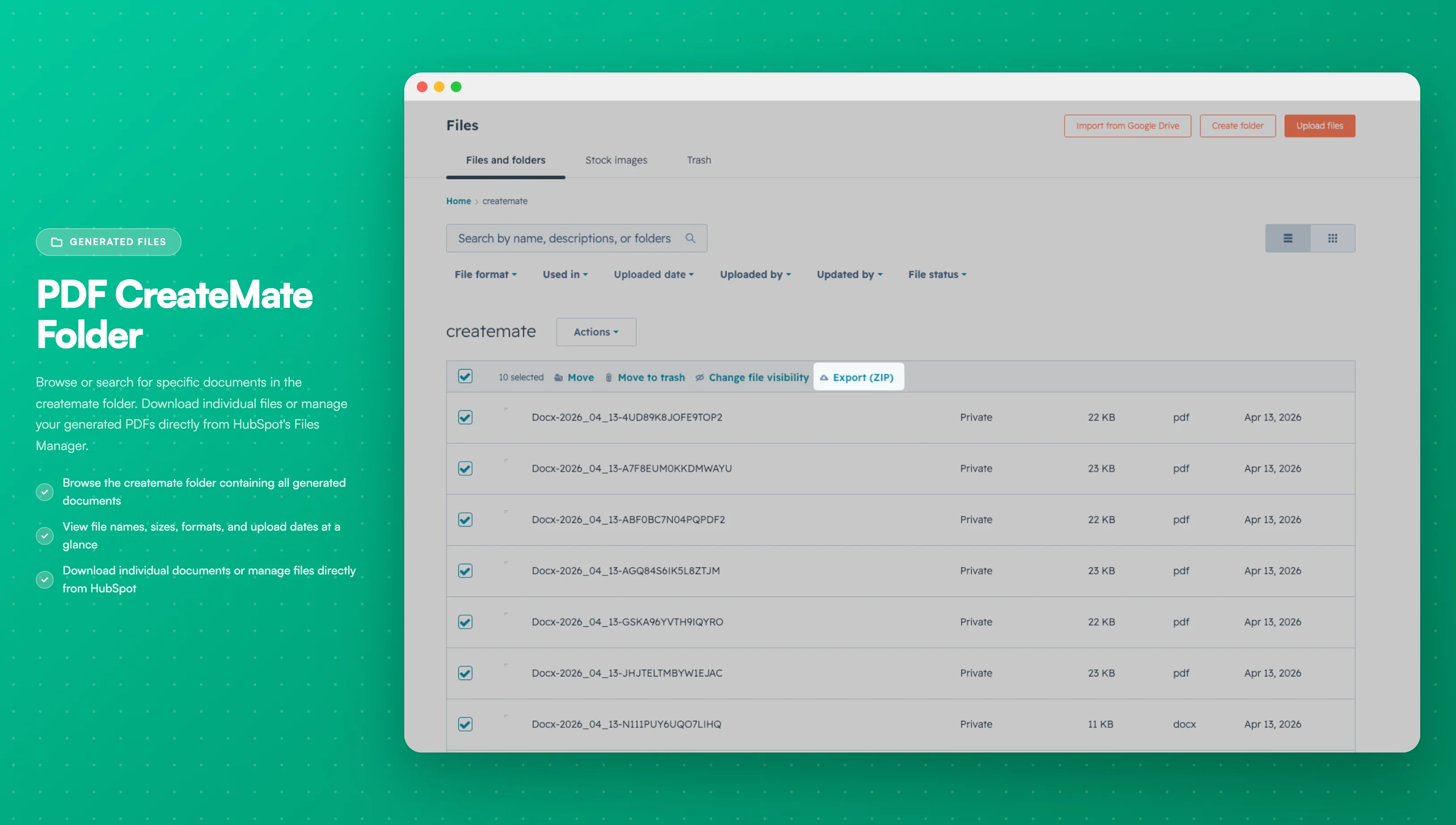
Image description
The HubSpot file manager shows:
- A list/grid of generated PDF documents
- File names, sizes, and upload dates
- PDF CreateMate folder organization
- Download and preview options for each file
- A list/grid of generated PDF documents
- File names, sizes, and upload dates
- PDF CreateMate folder organization
- Download and preview options for each file
Using Document Links
The document URL stored in the file property can be used for:
- Marketing emails: Include download links in campaigns
- Workflows: Share documents automatically via email
- Sales outreach: Send personalized documents to prospects
- Customer portals: Embed links for self-service access
The ways in which you can utilize these personalized documents are boundless. We invite you to share your innovative uses and success stories with us. Stand a chance to be featured on our official landing page!
If the template's file visibility is set to PRIVATE, HubSpot will require authenticated access for the file URL; public sharing will be blocked.