


Generate Documents
Workflow Actions Recommended
The PDF CreateMate workflow action allows you to automatically generate personalized PDFs based on data from your HubSpot records. This is the recommended method for automating document generation.
Prerequisites
Before getting started, ensure that:
- You have an active HubSpot account configured with PDF CreateMate. Connect HubSpot account if not configured.
- Your Word (.docx) templates have been uploaded and configured on PDF CreateMate. Upload template if not configured.
Steps to Set Up the Workflow Action
-
Create a Workflow: In HubSpot, create a new workflow for the specific HubSpot standard object (e.g., contacts, companies, deals, tickets) or custom objects that you want to generate PDFs for.
-
Set the Trigger: Configure the desired trigger that will initiate the PDF generation process. This can be based on any event or condition in HubSpot, such as form submissions or deal stages.
-
Add the PDF CreateMate Action: Once the trigger is set, click on Add actions in the workflow editor and search for 'PDF CreateMate'.
-
Select 'Generate Personalized PDF': From the list of actions, choose Generate personalized PDF to add this to your workflow.
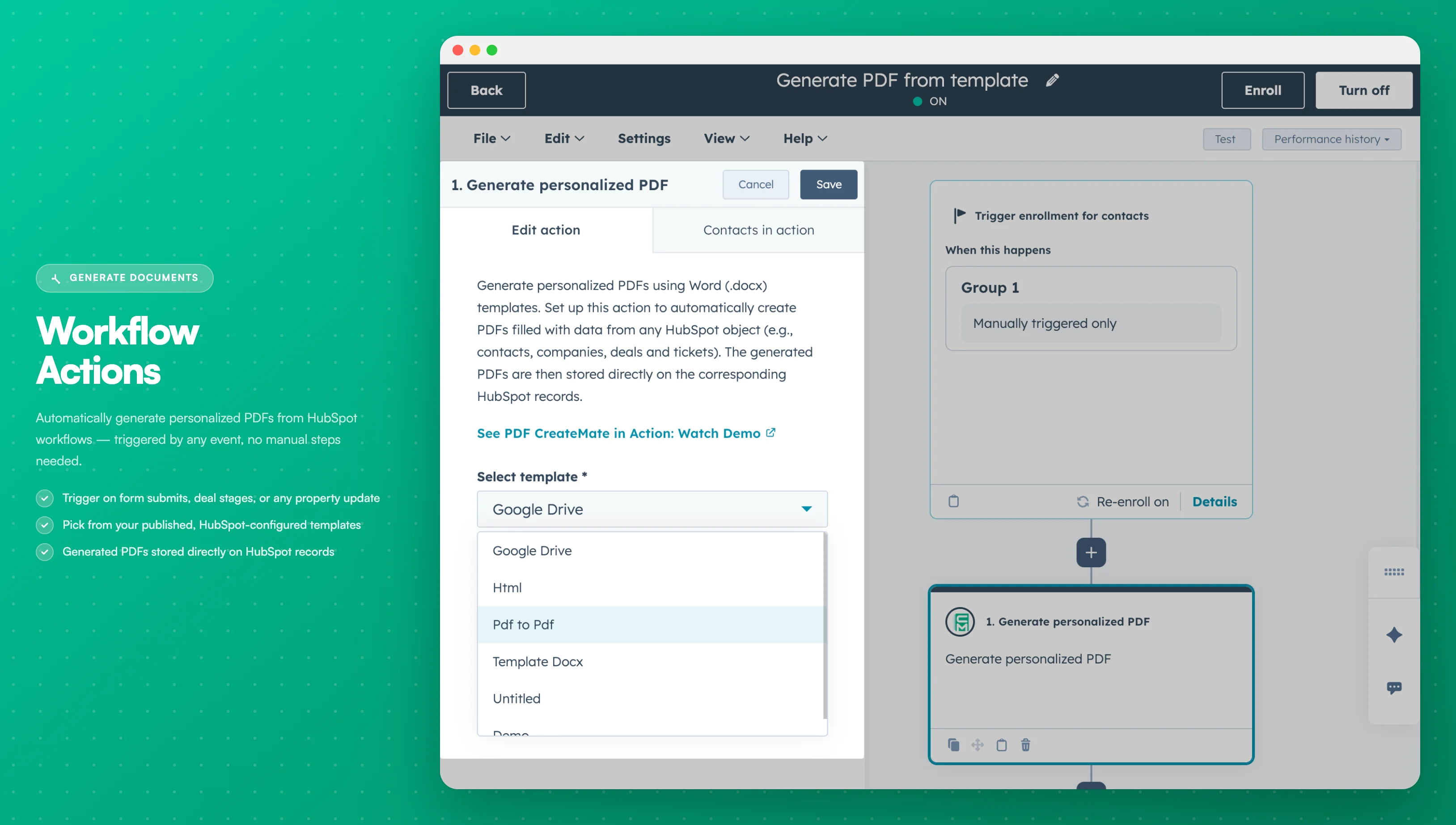
Image description
- A search field with "PDF CreateMate" entered
- The "Generate personalized PDF" action option highlighted
- The PDF CreateMate logo next to the action
- Category filters on the left sidebar
-
Choose a Template: Select a template. Only templates that are published, HubSpot-configured, and match the workflow’s object type appear in the list.
-
Save the Workflow: After configuring the PDF action, hit Save to finalize the setup.
-
Test Before Publishing: It is important to test the workflow to ensure everything is functioning as expected before you publish it. The HubSpot portal must remain connected/active for the action to run.
Common Triggers
| Trigger Type | Use Case |
|---|---|
| Form submission | Generate welcome documents for new leads |
| Deal stage change | Create proposals when deals reach certain stages |
| Property update | Generate documents when specific fields are filled |
| Date-based | Create renewal notices before contract expiration |
Next Steps
- Regenerate Documents - Update existing documents
- Access Documents - Find generated PDFs