


Templates
Live Preview with HubSpot Data
Test your template with real HubSpot data before publishing. The Live Preview feature lets you enter a HubSpot record ID and see exactly how your placeholders will be filled with actual property values.
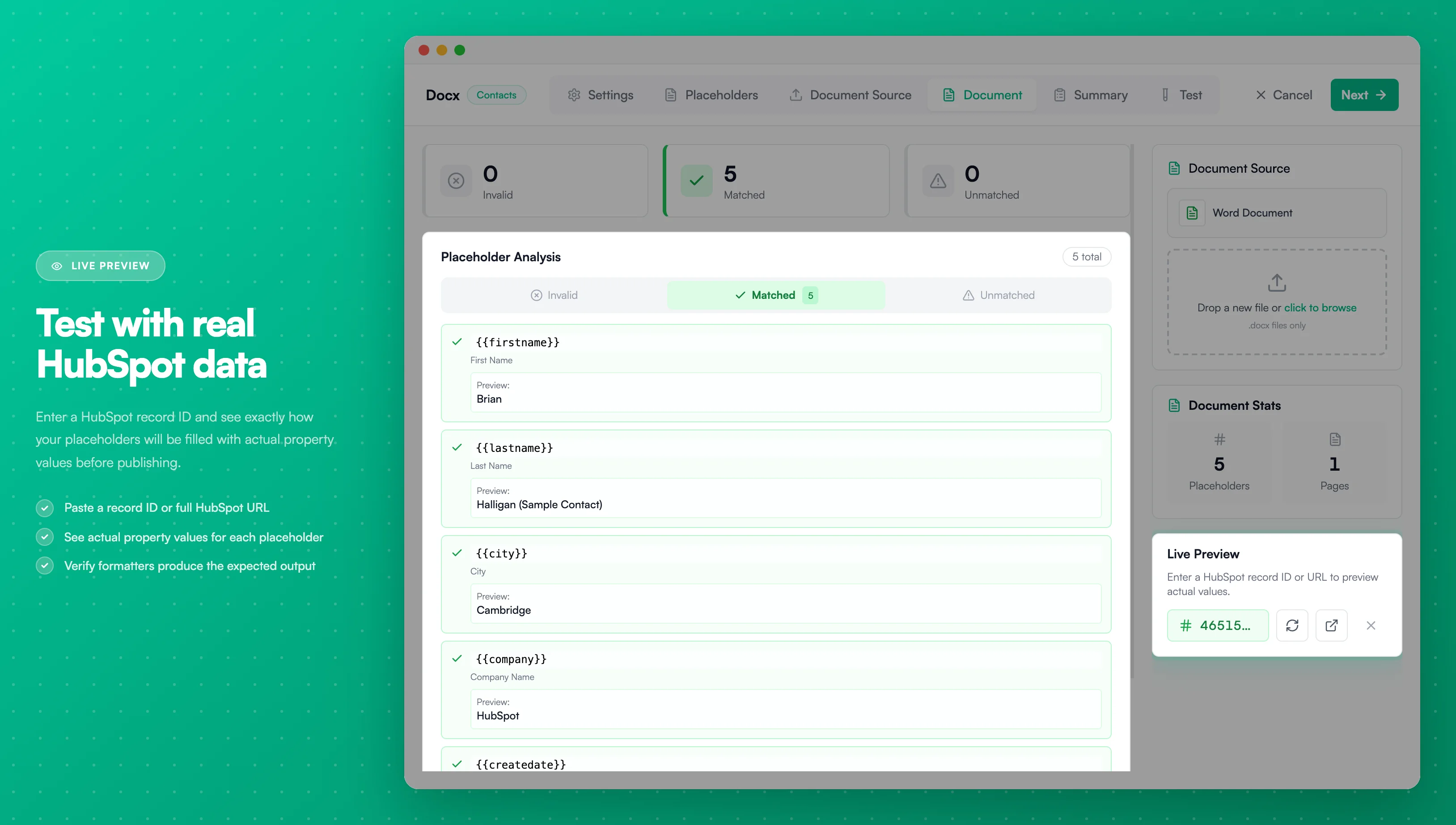
Image description
The Live Preview feature shows:
- A HubSpot record ID input field with reload, open in HubSpot, and clear buttons
- Placeholder Analysis card with matched placeholders and their preview values
- Each placeholder displays the property label and the actual value from HubSpot
- Summary cards showing Invalid, Matched, and Unmatched placeholder counts
- Document Stats sidebar with placeholder count and page count
- A HubSpot record ID input field with reload, open in HubSpot, and clear buttons
- Placeholder Analysis card with matched placeholders and their preview values
- Each placeholder displays the property label and the actual value from HubSpot
- Summary cards showing Invalid, Matched, and Unmatched placeholder counts
- Document Stats sidebar with placeholder count and page count
How to Use Live Preview
- Open your template in the Template Builder
- Navigate to the Placeholders step
- Enter a HubSpot Record ID in the preview input field
- Press Enter or click the load button
PDF CreateMate fetches the record's properties from HubSpot and displays the values for each placeholder in your template.
You can paste a full HubSpot URL instead of just the record ID. PDF CreateMate automatically extracts the ID from URLs like https://app.hubspot.com/contacts/12345/contact/67890.
What You'll See
For each placeholder in your template, the preview shows:
| Column | Description |
|---|---|
| Placeholder | The expression used in your template (e.g., {{firstname}}) |
| Raw Value | The property value as stored in HubSpot |
| Formatted Value | The value after applying formatters (e.g., uppercase, currency, date formatting) |
This lets you verify that:
- Placeholders resolve to the correct HubSpot properties
- Formatters produce the expected output
- Default values appear when a property is empty
- Conditional blocks will evaluate correctly
Accepted Input Formats
You can enter the record identifier in several ways:
| Format | Example |
|---|---|
| Record ID | 67890 |
| Full HubSpot URL | https://app.hubspot.com/contacts/12345/contact/67890 |
| Record URL | https://app.hubspot.com/contacts/12345/record/0-1/67890 |
The record must match your template's object type. If your template is configured for Contacts, enter a Contact record ID.
Testing with Sample Values
If you don't have a specific HubSpot record to test with, the preview also offers preset sample values for common property types:
- Text: Sample names, emails, and descriptions
- Numbers: Currency amounts, percentages, and decimals
- Dates: Today's date, future dates, and past dates
- Files: Sample image and document URLs
These presets help you quickly verify formatter behavior without looking up real records.
Tips
- Test edge cases — Try records with empty properties to see how default values behave
- Verify formatters — Check that currency, date, and number formatters produce the right output for your locale
- Check conditional blocks — Test with records that trigger different conditional paths
- Use the HubSpot link — Click the HubSpot icon next to the input to open the record directly in HubSpot
Related Documentation
- Create Template — Placeholder syntax and formatting
- Formatters & Defaults — Available formatters and default values
- Conditional Blocks — Dynamic content based on property values