


Templates
Create personalized template
By the PDF CreateMate team Last updated
- Start by either creating a new document file or opening an existing one. You can work in Word (.docx), Google Docs (imported directly in PDF CreateMate), or use a PDF form with interactive fields.
- Visit Properties to search and copy HubSpot properties for your selected object type (Contact, Company, Deal, or Ticket) by simply clicking on copy.
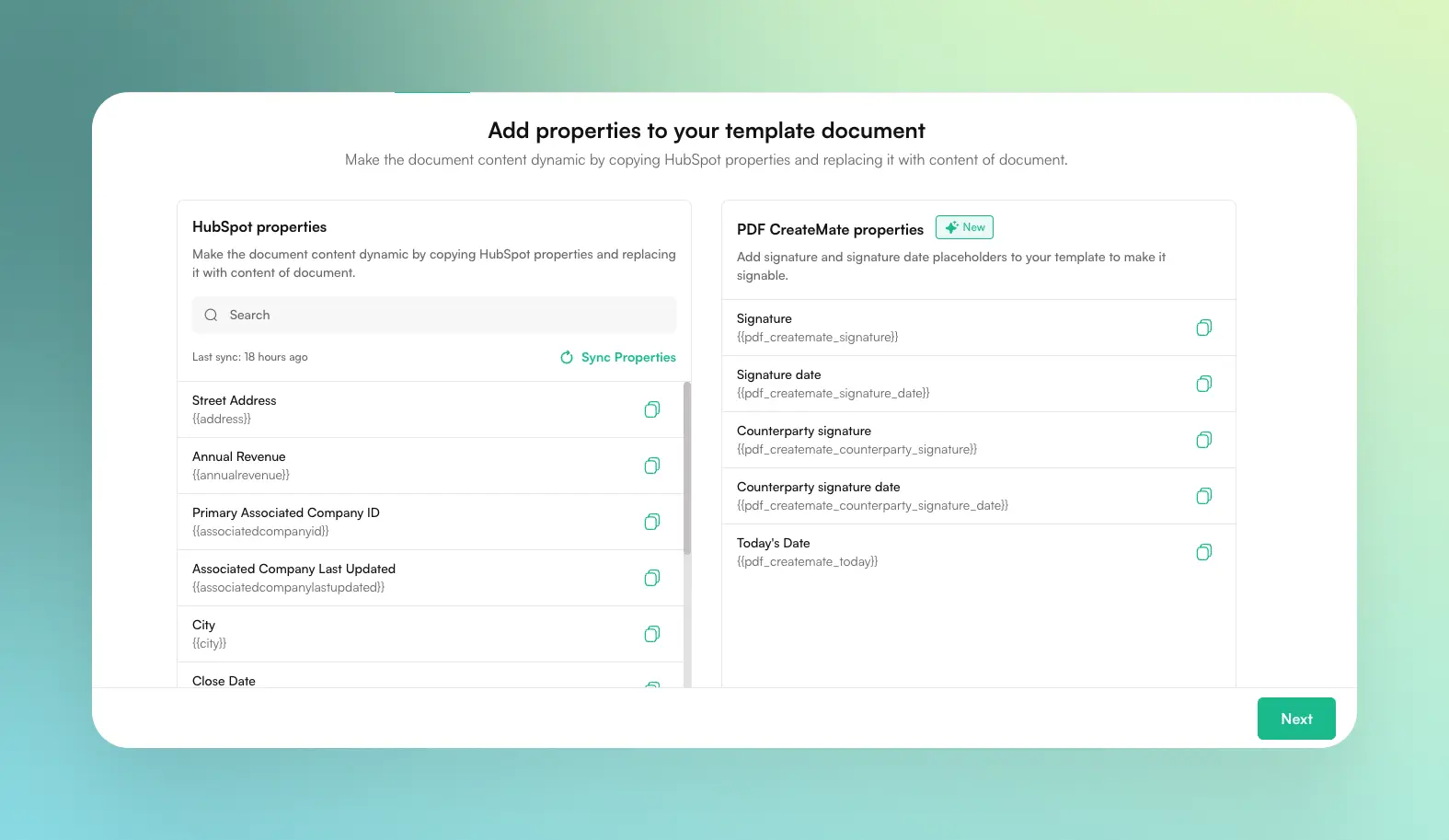
Image description
- A search bar to filter properties by name
- A sync button with a "Last synced" timestamp
- Two sections: HubSpot Properties and PDF CreateMate Properties
- A list of available properties with their placeholder variables (e.g., {{property_name}})
- One-click copy buttons next to each property placeholder
Image description
- Click Sync on the Properties page so new HubSpot properties appear
- Search for the property, here "first name"
- Click it to copy the exact field name, here {{firstname}}
- Paste the field name into your document
- On the template's Document step, click the refetch button
- Check the Placeholder Analysis: {{firstname}} is listed under Matched
Always copy the placeholder from the Properties page. It uses the property's internal name, which can differ from the label you see in HubSpot (for example {{n_siret}} for a property labelled "SIRET"). Placeholders are case-sensitive.
- In your document, identify and replace static text with the copied HubSpot contact properties.
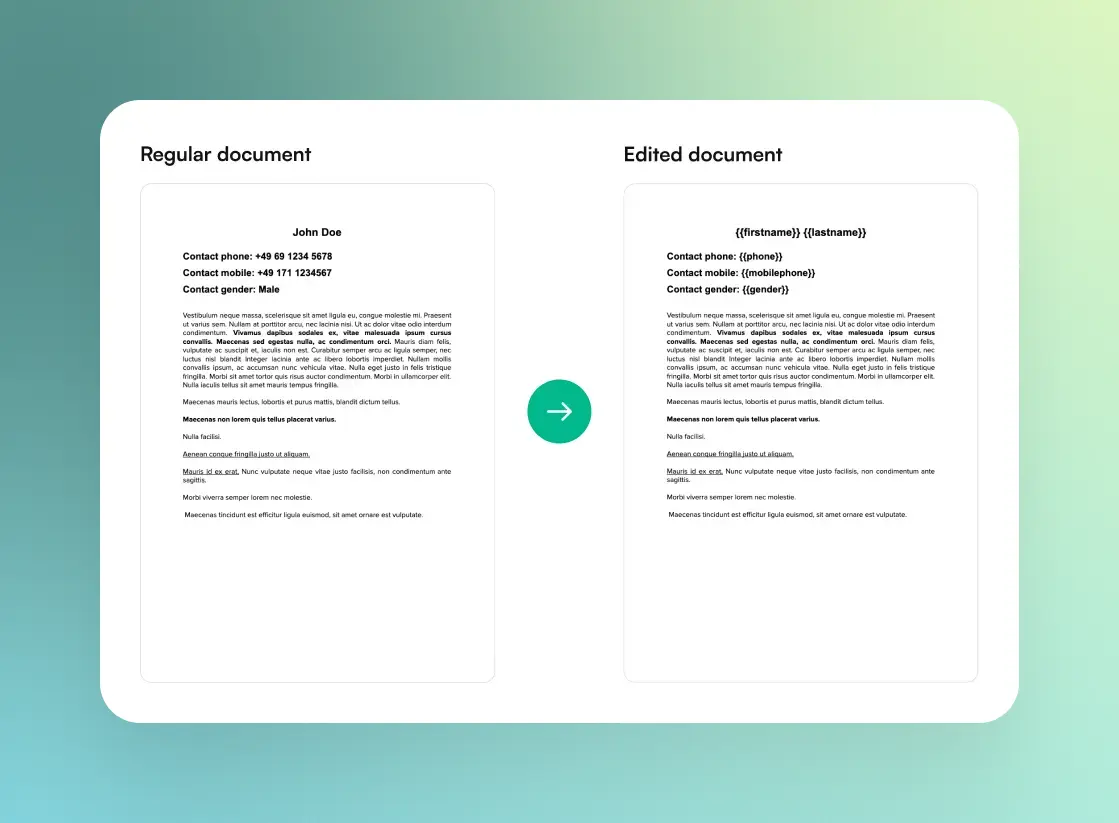
Image description
- Original static text like "John Doe" replaced with {{firstname}} {{lastname}}
- Company name replaced with {{company}} placeholder
- Email address replaced with {{email}} placeholder
- The double curly brace syntax {{property_name}} for all dynamic fields
PDF CreateMate Built-in Placeholders
In addition to HubSpot properties, PDF CreateMate provides built-in placeholders you can use in your templates. These are listed under the PDF CreateMate Properties tab on the Properties page.
| Placeholder | Description | Example Output |
|---|---|---|
{{todayDate}} |
Current date at generation time, formatted according to your Date Format settings | 26/03/2026 |
{{pdf_createmate_line_items}} |
Deal line items table — Deal templates, and Contact, Company, Ticket and Project templates (the associated deal's), in Word, Google Docs, and HTML formats. Not supported in PDF-to-PDF. See Deal Line Items for details. | formatted table |
Example: If your date format is set to DD/MM/YYYY and you generate on March 23, 2026, {{todayDate}} outputs 23/03/2026.
- After ensuring all necessary text replacements have been made, download or save your document in the .docx format (or provide the Google Docs link when importing).