


Troubleshooting
The Document Generates But Is Not On The Record New
Symptom: the document is created. You can see it in PDF CreateMate, you can open it, and it looks exactly right. HubSpot reports no error anywhere. But the HubSpot record is unchanged — the property you expected the document in is still empty.
This is the most common way document generation fails, and the hardest to spot, because nothing anywhere says the word "failed". Generating a document and saving it onto the record are two separate steps. The first can succeed while the second quietly does not.
Work through the three causes below in order. The first one is by far the most likely.
1. A missing HubSpot permission
Writing a document onto a record asks your HubSpot portal for permission to update that record type. If your portal did not grant it, that is the first thing to close — though HubSpot sometimes allows the write regardless, so treat a permission your portal withheld as the most likely lead rather than as a verdict.
How to tell: open Settings and look at the HubSpot Connection Health card. Find the row for the record type you are generating for — Contacts, Deals, Tickets and so on.
- The row says Not granted or Partly granted, and names update records — start here.
- The row says Granted — the permission is not the gap for this record type. Move on to cause 2.
What to do: reconnect HubSpot as a Super Admin and approve every permission. The permissions PDF CreateMate gets are the permissions of the HubSpot user who authorises it, so reconnecting as someone with narrower access will not fix anything.
- In Settings, note the exact permission wording the card shows under In HubSpot.
- Click Reinstall HubSpot App while signed in to HubSpot as a Super Admin.
- Approve every permission on HubSpot's screen, including the optional ones.
- Return to PDF CreateMate and generate the document again.
Only an organization owner can reconnect. If you are not the owner, send them this page.
Full detail: HubSpot Connection Health.
2. The storage property or the storage type
Every template names a HubSpot property to store the finished document in, and a format to store it as. If either is wrong, the document has nowhere sensible to land.
How to tell: open the template, go to the Settings step, and look at HubSpot Storage Property and Storage Type.
- No storage property is selected. The document has nowhere to go. Pick one — only file properties are offered, and you can create one from the picker. See Create HubSpot Properties.
- You are looking at the wrong property on the record. The document is written to the property named here, not to wherever you expected it. Open that property on the record and check it directly.
- Storage Type is File Attachment. The property then holds HubSpot's file reference rather than a link. On the record HubSpot renders it as a file, so the record is not actually empty — but anywhere else, including a HubSpot email, that property is a long number. See Storage Type.
3. The template never finished setting up in HubSpot
Publishing a template does work inside your portal: it registers the trigger property and the workflow action. If HubSpot refuses that — almost always a missing permission — the template looks published in PDF CreateMate but is not wired up on the HubSpot side. It will never appear in the workflow action, and its property tick does nothing.
How to tell: open the templates list. If any template is affected, a banner at the top of the page says how many did not finish setting up, and the template itself carries a Setup failed badge.
What to do:
- Check the HubSpot Connection Health card in Settings first — if a permission is missing, publishing again will fail the same way.
- Open the template, go to the Test step and click Set up in HubSpot again.
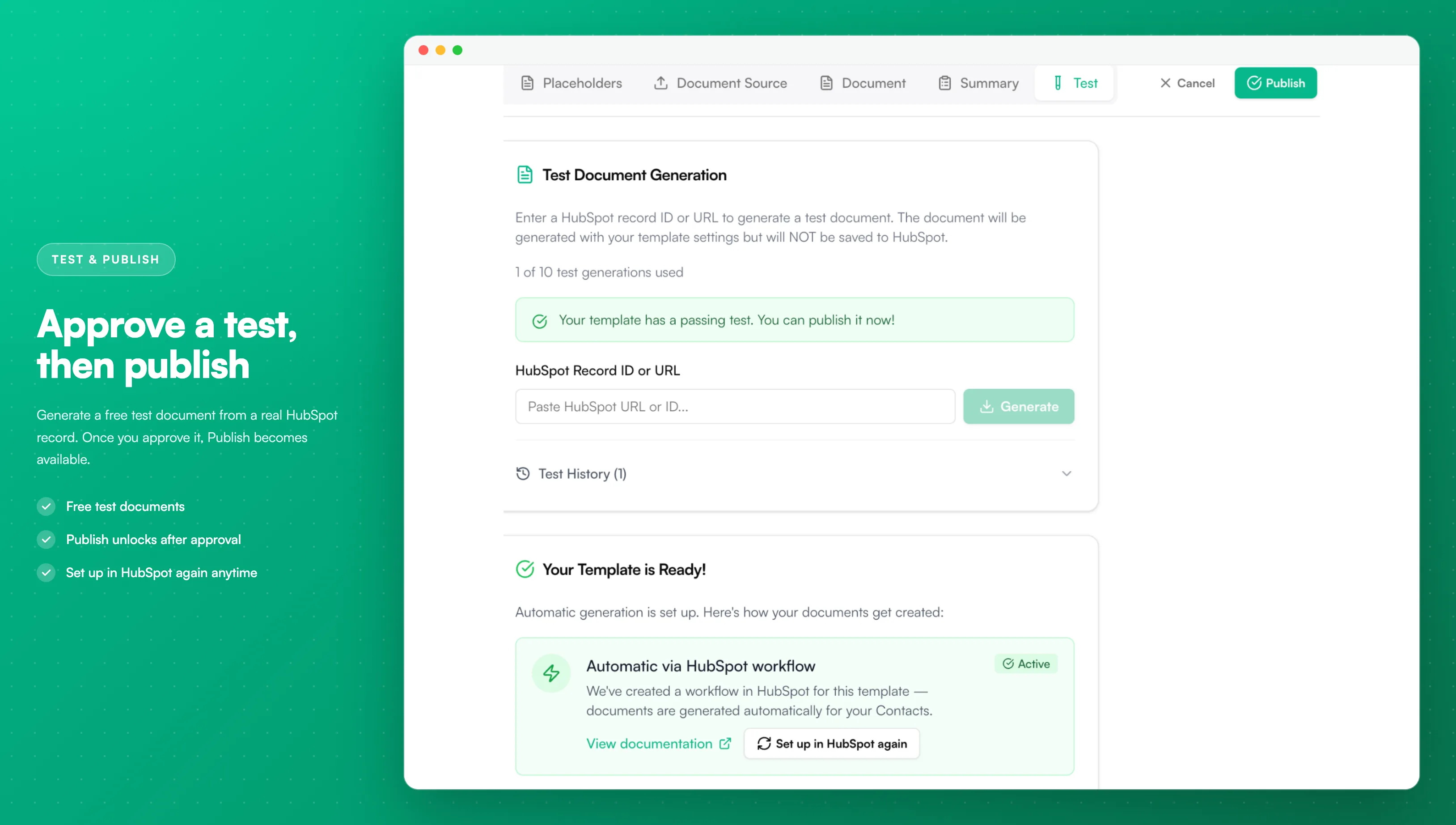
Image description
- A field for a HubSpot record ID or URL and a Generate button
- A green notice once a test has passed, saying the template can be published
- The Publish button at the top right
- The Test History with previous test documents
- A "Your Template is Ready!" card with the Set up in HubSpot again button
- Confirm the banner and the badge are gone, and that the template now appears in the HubSpot workflow action.
Still empty
If all three check out and the record still does not change:
- Confirm the generation actually ran for that record. A workflow that did not enrol the record generates nothing. See Workflow Actions.
- Confirm you are looking at the right portal. The HubSpot Connection Health card shows the portal ID PDF CreateMate is connected to.
- Check the Error Logs for the generation in question.
Then contact support with the template name and the HubSpot record you were generating for. We can see what your portal granted and what it refused.