


Account
Managing Organizations
Each organization in PDF CreateMate is tied to a single HubSpot portal. If you manage multiple HubSpot portals, you can create and switch between separate organizations.
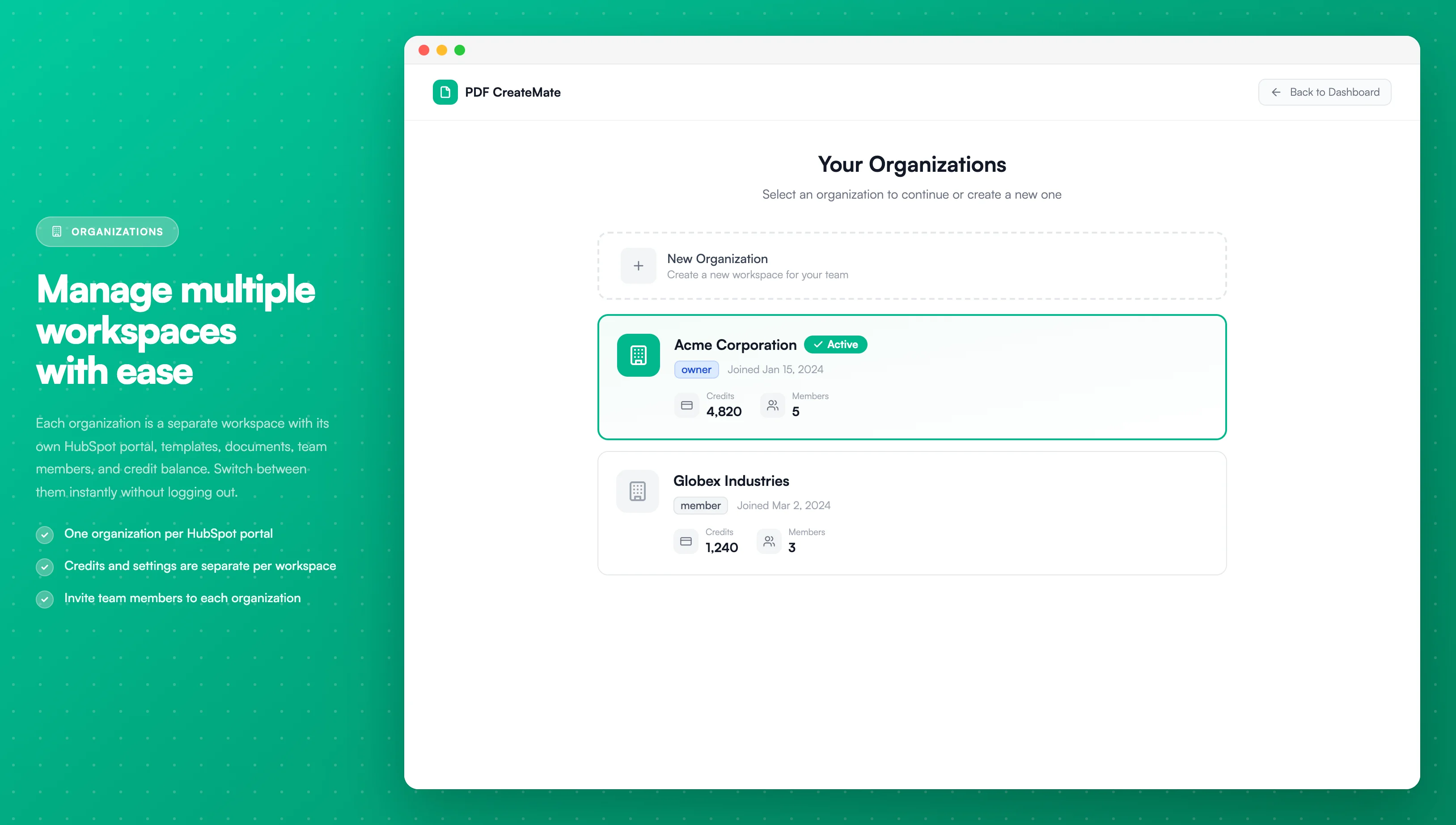
Image description
The Managing Organizations screen shows:
- A list of organizations with their HubSpot portal names
- The currently active organization highlighted
- Organization details including portal ID and connected users
- Options to switch between organizations
- Create new organization button
- A list of organizations with their HubSpot portal names
- The currently active organization highlighted
- Organization details including portal ID and connected users
- Options to switch between organizations
- Create new organization button
What Is an Organization?
An organization is a workspace that contains:
- Its own HubSpot portal connection
- Its own templates and generated documents
- Its own team members and roles
- Its own credit balance and billing settings
Credits and settings are not shared between organizations.
Switching Organizations
If you belong to more than one organization, an organization switcher appears at the bottom of the left sidebar.
- Click the organization name at the bottom of the sidebar
- A dropdown opens showing all organizations you belong to
- Click the organization you want to switch to
- You are taken to that organization's templates page
The current organization is marked with a checkmark (✓). Each entry in the switcher also shows the remaining credit balance for that organization.
Switching organizations does not log you out. Your user account remains the same — only the active workspace changes.
Creating a New Organization
You can create additional organizations to manage separate HubSpot portals.
- Click the organization name at the bottom of the sidebar
- In the dropdown, click Create Organization
- Complete the setup flow to connect a new HubSpot portal
Each organization requires its own HubSpot portal connection and maintains a separate credit balance.
Working with Client Portals (Agencies)
Use one organization per HubSpot portal:
- Click the organization name at the bottom of the sidebar, then Create Organization.
- Connect the client's HubSpot portal. On HubSpot's account picker, choose the client's production portal, not a sandbox.
- Invite the client's team from Team, or ask the client to invite you to an organization they already have.
- Switch between your organizations from the sidebar at any time.
Organization Credits
Credits are scoped to each organization independently:
- Purchasing credits adds them to the currently active organization only
- Switching organizations switches to that organization's credit balance
- Auto-recharge settings and billing details are configured per organization
Best Practices
- Use separate organizations for each HubSpot portal you manage
- Check the organization switcher to confirm you are in the correct organization before generating documents or configuring templates
- Invite team members individually to each organization if they need access to multiple portals