


Templates
Create HubSpot Properties
You can create the HubSpot properties a template stores its output in directly from PDF CreateMate, without leaving the template builder. The builder creates two types only: File properties for generated documents and single-line text properties for signature links and signer emails.
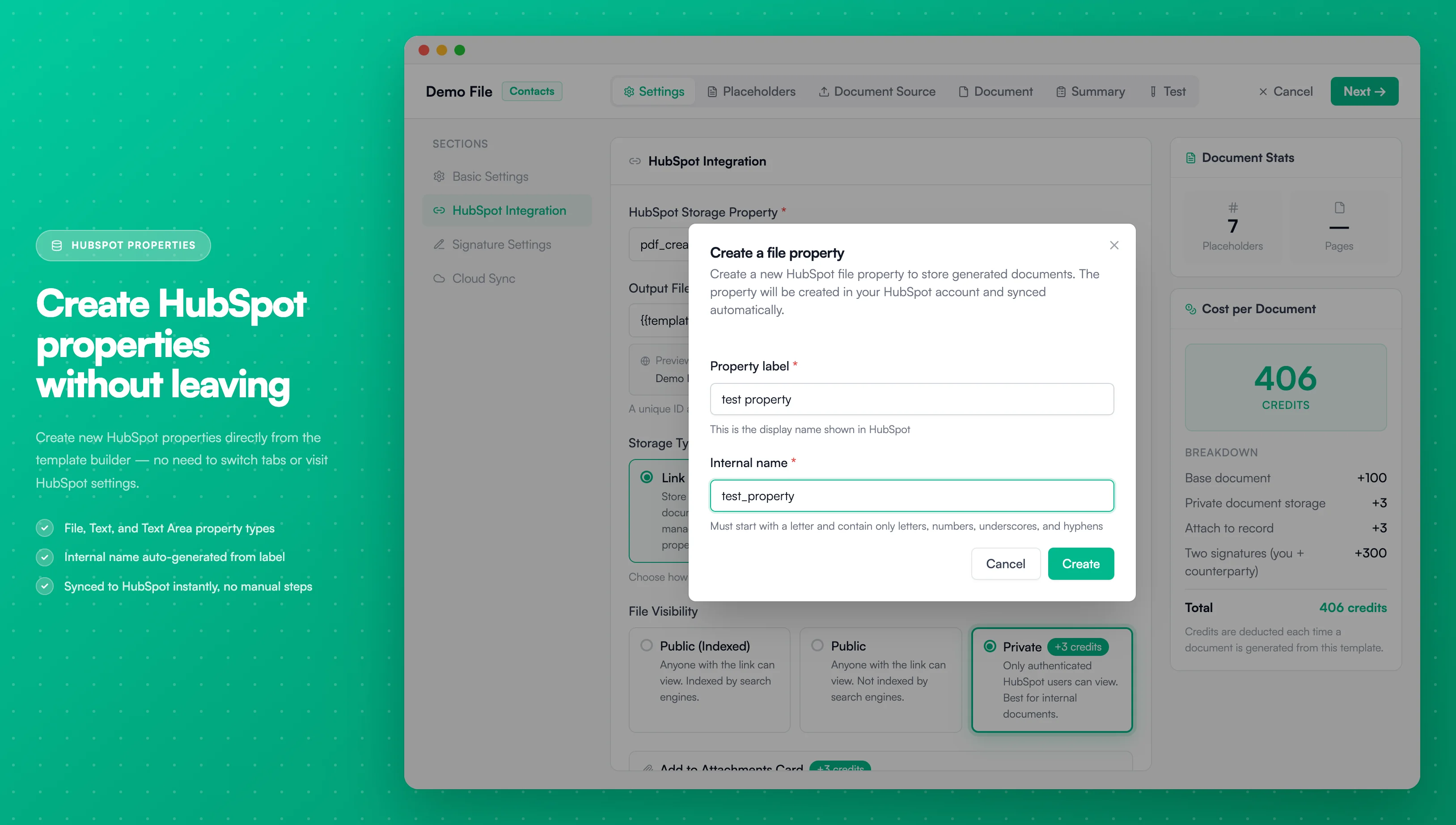
Image description
The Create Property dialog shows:
- A Property label field and an Internal name field that fills in from the label
- The property type is set by where you opened the dialog (File or single-line text)
- Create and Cancel buttons in the dialog footer
- A Property label field and an Internal name field that fills in from the label
- The property type is set by where you opened the dialog (File or single-line text)
- Create and Cancel buttons in the dialog footer
When to Create Properties
- You need a new file property to store generated PDFs on a HubSpot record
- You need a text property for a signature link or a signer's email address
The builder can't create properties for placeholders. If placeholder analysis finds an unmatched placeholder that needs a number, date, dropdown or other type, create it in HubSpot under Settings → Properties, then sync your properties. See Reanalyze Placeholders.
How to Create a Property
- In the Template Builder, open the Settings step and click Create Property next to the property you need: the storage property (File), or the signature URL or signer email property (single-line text)
- Fill in the property details:
| Field | Description |
|---|---|
| Label | Display name shown in HubSpot (e.g., "Invoice PDF") |
| Internal Name | Machine-readable name used in placeholders and API calls (auto-generated from label) |
- Click Create to add the property to HubSpot
The internal name is automatically generated from the label. For example, "Invoice PDF" becomes "invoice_pdf". You can edit it before creating.
Field Types
| Type | Use Case |
|---|---|
| File | Store generated PDF or DOCX files. Use this for document storage properties. |
| Single-line text | Signature URLs and signer or counterparty email addresses. |
You don't pick the type yourself. The dialog creates a File property when you open it from the storage property, and a single-line text property when you open it from a signature or email property.
Naming Rules
Internal property names must follow these rules:
- Must start with a letter (not a number or special character)
- Can contain letters, numbers, underscores, and hyphens
- Must be unique within the same HubSpot object type
- Are automatically converted to lowercase
Valid examples: invoice_pdf, contract-file, signatureUrl
Invalid examples: 123_file (starts with number), my file (contains space)
After Creating a Property
Once created, the property is immediately available:
- It appears in your HubSpot portal under the corresponding object type
- You can select it as a storage property in the template Settings step
- The property is added to the PDF CreateMate property group in HubSpot
Properties created through PDF CreateMate are automatically synced. No need to manually sync properties afterward.
Related Documentation
- Upload Template — Selecting a storage property for generated documents
- Reanalyze Placeholders — Fix unmatched placeholders
- Supported HubSpot Objects — Which object types support properties