


Troubleshooting
Common Issues
This page covers solutions to the most frequently encountered problems when using PDF CreateMate.
Properties Not Replaced
Problem: Your placeholders like {{firstname}} appear in the generated PDF instead of actual values.
Solutions:
-
Check placeholder syntax
- Use double curly braces
{{propertyname}}or dollar syntax${propertyname} - Both formats support flexible whitespace:
{{ firstname }}and${ firstname }work
- Use double curly braces
-
Remove hidden characters
- Sometimes hidden formatting characters are copied into your document
- If a placeholder doesn't replace, delete it completely and retype it
- Copy property placeholders directly from the Properties page in PDF CreateMate
- When pasting, use "Paste as Plain Text" (Ctrl+Shift+V) to avoid hidden formatting
-
Verify property names
- Property names must exactly match HubSpot internal names
- Use HubSpot's property settings to find the exact internal name
- Property names are case-sensitive
-
Check property mapping
- Go to your template settings in PDF CreateMate
- Verify each placeholder is mapped to the correct HubSpot property
-
Ensure the record has data
- The HubSpot record must have a value for the property
- Empty properties will remain as placeholders or show as blank
Styling or Image Display Issues
Problem: Your PDF looks different from your Word template—fonts, images, or formatting appears wrong.
Solutions:
-
Font issues
- Embed fonts in your DOCX file
- Use standard fonts like Arial, Times New Roman, or Calibri
- Avoid system-specific fonts
-
Image problems
- Ensure images are embedded, not linked
- Use standard formats: PNG, JPG, or GIF
- Check image resolution (300 DPI recommended for print)
-
Layout issues
- Avoid complex layouts with multiple columns
- Use tables for structured layouts
- Keep margins consistent
-
Re-upload the template
- Save your DOCX with all changes
- Upload a fresh copy to PDF CreateMate
PDF Layout Differs from Word
Problem: The PDF doesn't match your Word file: a table is out of place, columns don't line up, text is missing, or the document runs onto an extra page.
Why it happens: Word files are converted to PDF by a conversion engine that can render some layouts slightly differently from Word: complex tables, free-floating text boxes, and pages with no bottom margin.
What to try:
- Give the page a small bottom margin, so a minor difference doesn't push content onto the next page.
- Set text boxes and images to In Line with Text instead of floating.
- Use simple tables for layout rather than nested tables or text boxes.
- Upload the updated file and generate a new test.
Workflow Issues
Problem: PDFs aren't being generated when contacts move through workflows.
Solutions:
- Enable re-enrollment in HubSpot
- If a first test failed, the contact may not trigger the workflow again
- HubSpot workflows only process each record once by default
- Enable re-enrollment triggers to allow records to re-enter the workflow
- Learn how to add re-enrollment triggers →
-
Check workflow enrollment
- Verify contacts are actually entering the workflow
- Check HubSpot workflow analytics
- Look for enrollment errors in the workflow history
-
Review action configuration
- Ensure the PDF CreateMate action is correctly placed
- Verify template selection in the action
-
Check permissions
- Confirm PDF CreateMate has proper HubSpot permissions
- Re-authorize if necessary in Settings
-
Review credit balance
- Ensure you have available credits
- Generation pauses when credits run out
Changing PDF File Name
Problem: You want to customize the generated PDF filename.
Solution: PDF CreateMate supports dynamic file naming:
- Go to your template settings
- Find the File Naming section
- Configure using HubSpot properties and text
Example: Invoice_{{dealname}}_{{closedate}}
See File Naming for detailed instructions.
Changing Template Name
Problem: You want to rename an existing template.
Solution:
- Go to Templates
- Click on the template you want to rename
- Click the template name or edit icon
- Enter the new name
- Save changes
Updating a Template
Problem: You've made changes to your DOCX file and need to update the template.
Solution:
- Make changes to your local DOCX file
- Go to Templates in PDF CreateMate
- Click on the template to open the Template Builder
- Go to the Document Source step
- Click Change to replace the file
- Select your updated DOCX file
- Review the property mappings (they are usually preserved).
- Generate a new test on the Test step to check the result. Changes to a published template apply to the next document generated.
Google Docs templates: PDF CreateMate keeps a copy of your Google Doc. After editing it in Google Docs, open the template's Document step and, in the Document Source card, click the refetch button (↻). PDF CreateMate fetches the latest version and updates the placeholders.
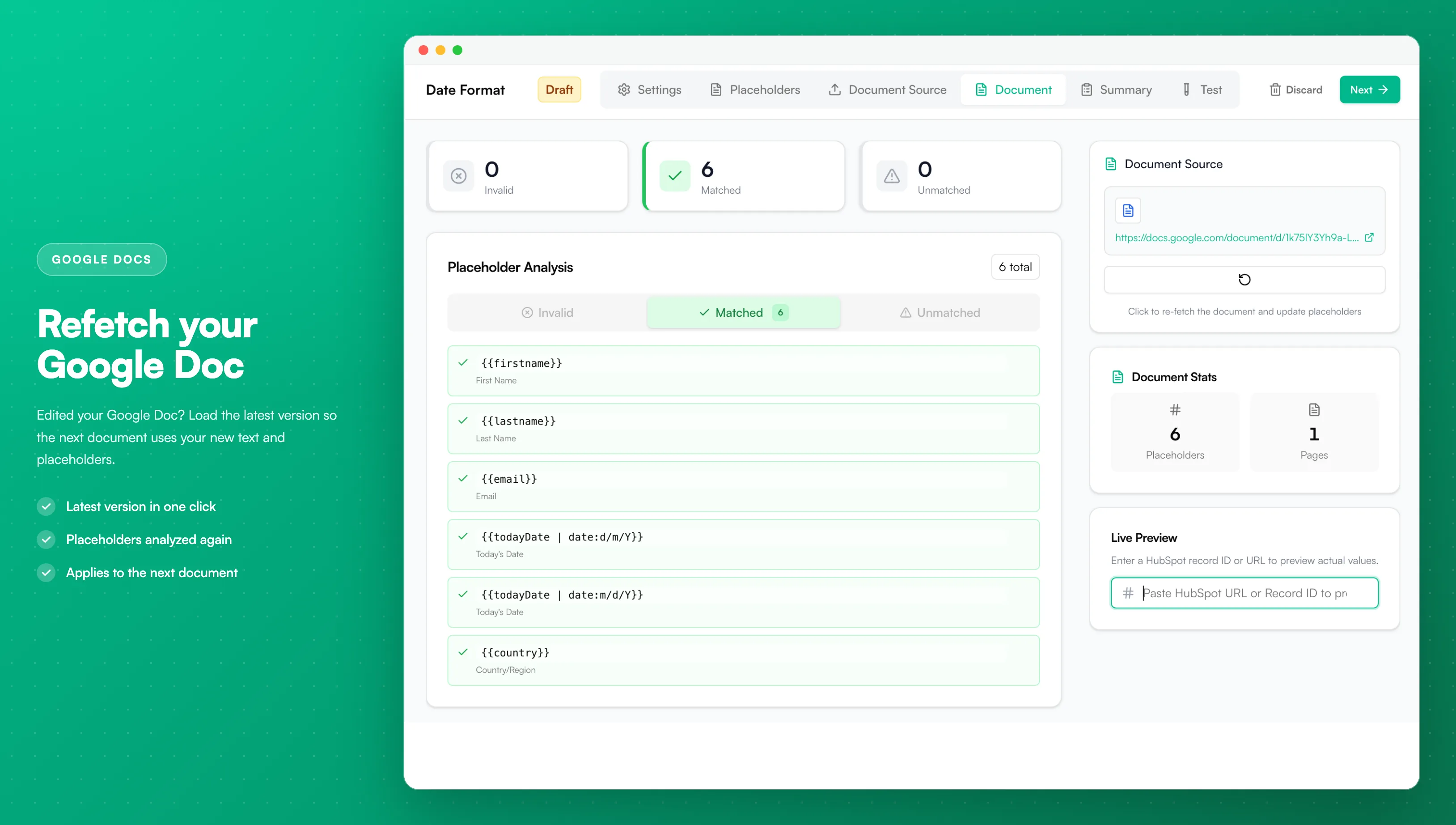
Image description
- The placeholder analysis with invalid, matched and unmatched counts
- A Document Source card on the right with a link to the Google Doc
- The refetch button (↻) under the link
- The hint "Click to re-fetch the document and update placeholders"
Documents already generated: changing the template doesn't change existing documents. To update one with the new template or the latest HubSpot data, regenerate it.
Multi-Select Values
How multi-select properties display:
Multi-select HubSpot properties (like checkboxes and multi-select fields) are automatically formatted as comma-separated values in your PDF. For example:
- HubSpot stores:
Option1;Option2;Option3 - PDF displays:
Option1, Option2, Option3
Multi-select values always use commas with spaces as the separator. There is no UI option to customize the separator format.
General Troubleshooting Steps
If you're experiencing any issue:
- Refresh the page - Clear any temporary glitches
- Check HubSpot connection - Go to Settings and verify the connection status
- Try a different browser - Rule out browser-specific issues
- Review recent changes - Did the issue start after a specific change?
- Check our status page - Verify no service disruptions
- Contact support - If nothing else works, we're here to help