


Templates
Deal Line Items
Deal line items let you include a fully formatted product table in your generated documents. When you add the {{pdf_createmate_line_items}} placeholder to a Deal template, PDF CreateMate replaces it with a table listing all line items from the HubSpot deal — including quantities, prices, discounts, and totals.
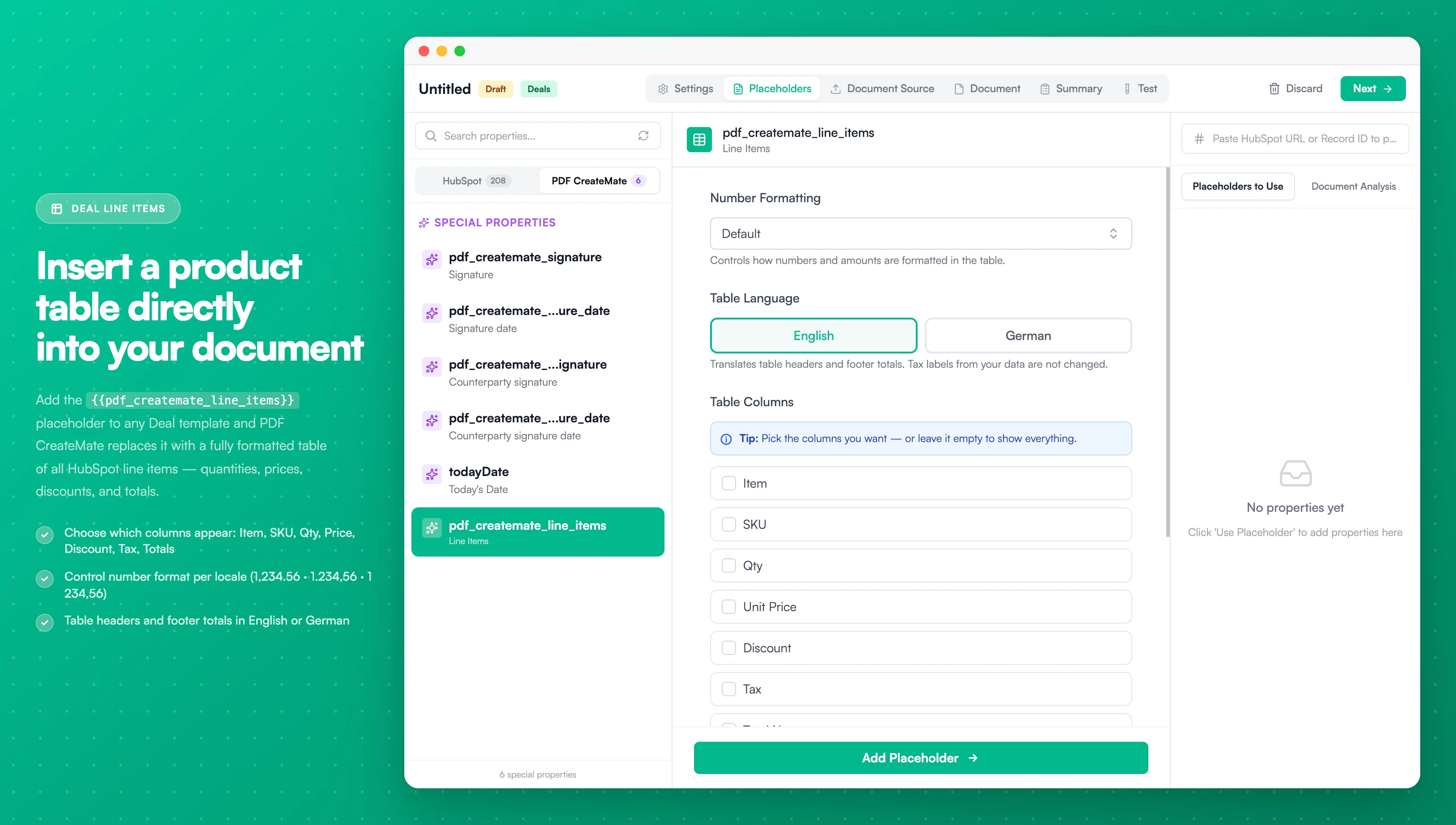
Image description
- Line item table settings with column visibility toggles
- Configurable columns including Name, Quantity, Unit Price, Discount, and Amount
- Currency and number formatting options for each column
- A live preview of the generated line item table
- Support for custom column headers and ordering
Requirements
Before using this feature, make sure:
- Your template is configured for the Deal object type
- Your template is a Word, Google Docs, or HTML template (not PDF-to-PDF)
- The deal in HubSpot has line items added to it
How to Use
- Go to the Placeholders step in the Template Builder
- Select the PDF CreateMate tab on the left
- Click pdf_createmate_line_items
- Configure your table options (columns, number format, language)
- Copy the placeholder and paste it into your Word template
Deal Line Items
{{pdf_createmate_line_items}}
When a document is generated, PDF CreateMate replaces the placeholder with a formatted table containing all line items from the deal.
Choosing Table Columns
You can choose which columns appear in your line items table. To customize:
- Select the pdf_createmate_line_items placeholder in the builder
- Scroll to the Table Columns section
- Check the columns you want to show
Available Columns
| Column | Description |
|---|---|
| Item | The product name and description |
| SKU | The product SKU/code |
| Qty | The number of units |
| Unit Price | The price per unit |
| Discount | Discount applied (amount or percentage) |
| Tax | Tax amount with label and rate |
| Total Net | Net total after discount (price x qty - discount) |
| Total Gross | Final total including tax |
When you select specific columns, the placeholder updates to include your selection:
Selected Columns Example
{{pdf_createmate_line_items | cols:name,sku,price,total_gross}}
Auto-detection (Default Behavior)
When no columns are explicitly selected, Discount and Tax columns are automatically shown or hidden based on the deal's data:
- If no line items have discounts, the Discount column is hidden
- If no line items have taxes, the Tax column is hidden
- All other columns are always shown
Number Formatting
You can control how numbers are formatted in the table (thousands separator and decimal symbol). Select a locale from the Number Formatting dropdown:
| Locale | Number Format |
|---|---|
| Default | 1,234.56 |
| Germany (de-DE) | 1.234,56 |
| Switzerland (de-CH) | 1'234.56 |
| France (fr-FR) | 1 234,56 |
The currency symbol comes from your HubSpot deal data — the locale only controls how the numbers are formatted.
German Number Format
{{pdf_createmate_line_items | number:de-DE}}
Table Language
Table headers and footer labels can be displayed in English or German. Select your language from the Table Language option:
| English | German |
|---|---|
| Item | Artikel |
| SKU | Artikelnr. |
| Qty | Menge |
| Unit Price | Einzelpreis |
| Discount | Rabatt |
| Tax | Steuer |
| Total Net | Netto gesamt |
| Total Gross | Brutto gesamt |
| Subtotal (net) | Zwischensumme (netto) |
| Total Amount (gross) | Gesamtbetrag (brutto) |
German Language
{{pdf_createmate_line_items | lang:de}}
Combining Options
You can combine columns, number formatting, and language in a single placeholder:
Custom Columns + German Format + German Language
{{pdf_createmate_line_items | cols:name,sku,price,discount,tax,total_net,total_gross | number:de-DE | lang:de}}
Footer Rows
Below the line item rows, the table includes a summary footer:
- Subtotal — Sum of all line item totals
- Total Discount — Only shown if the Discount column is visible and discounts exist
- Tax Breakdown — Individual tax rows grouped by tax label and rate
- Total Tax — Only shown if the Tax column is visible and taxes exist
- Grand Total — The final total amount
Styling the Table
The table inherits the font and basic styling from the surrounding document. To control the table's appearance:
- Format the placeholder cell in Word before uploading — set the font, size, and cell border style you want the table to use
- The table will adopt the text formatting of the paragraph where the placeholder is placed
- For best results, place the placeholder in its own paragraph with no other text on that line
Limitations
- Deal templates only — This placeholder has no effect in Contact, Company, or Ticket templates
- Word, Google Docs, and HTML templates only — Not supported in PDF-to-PDF templates (uploaded PDF forms with fillable fields)
- HubSpot line items required — If the deal has no line items, no table appears in the document
Frequently Asked Questions
Q: Can I place the line items table anywhere in the document? A: Yes. Place the placeholder anywhere in your Word, Google Docs, or HTML template — in the body, inside a table cell, or in a section. It will be replaced in place.
Q: What happens if the deal has no line items? A: No table appears in the document.
Q: Can I have multiple line items tables with different settings? A: Yes. You can place multiple placeholders with different options (e.g., one with German formatting and another with English) in the same document.
Q: What happens if I select columns but the deal has no data for them? A: The column still appears with empty values or dashes. For example, if you include the SKU column but no line items have a SKU set, it will show as empty.
Q: Can I have other content on the same line as the placeholder? A: It is recommended to place the placeholder on its own line. Mixing it with other text on the same paragraph may produce unexpected layout results.
Q: Does the line items table support multiple currencies? A: The currency symbol comes from the deal's line items in HubSpot. The number formatting locale controls how numbers are displayed (separators and decimal style), not the currency itself.