


Getting Started
Connect HubSpot account
Follow these steps to connect your HubSpot account to PDF CreateMate:
- Begin by registering on the PDF CreateMate platform if you haven't already.
- Enter the 6-digit code we email to you (it is valid for 10 minutes), then complete your profile.
- After activation, on the prompted screen, click the Connect HubSpot account button.
- If you're not already logged into your HubSpot account, a login prompt will appear. Enter your HubSpot credentials to proceed.
- If you have multiple accounts, choose the specific HubSpot account you wish to connect with PDF CreateMate.
- A list of permissions that PDF CreateMate requires will be displayed. Thoroughly review these permissions to ensure you understand what access you're granting.
- Once you're comfortable with the permissions, click on the Connect app button to finalize the connection.
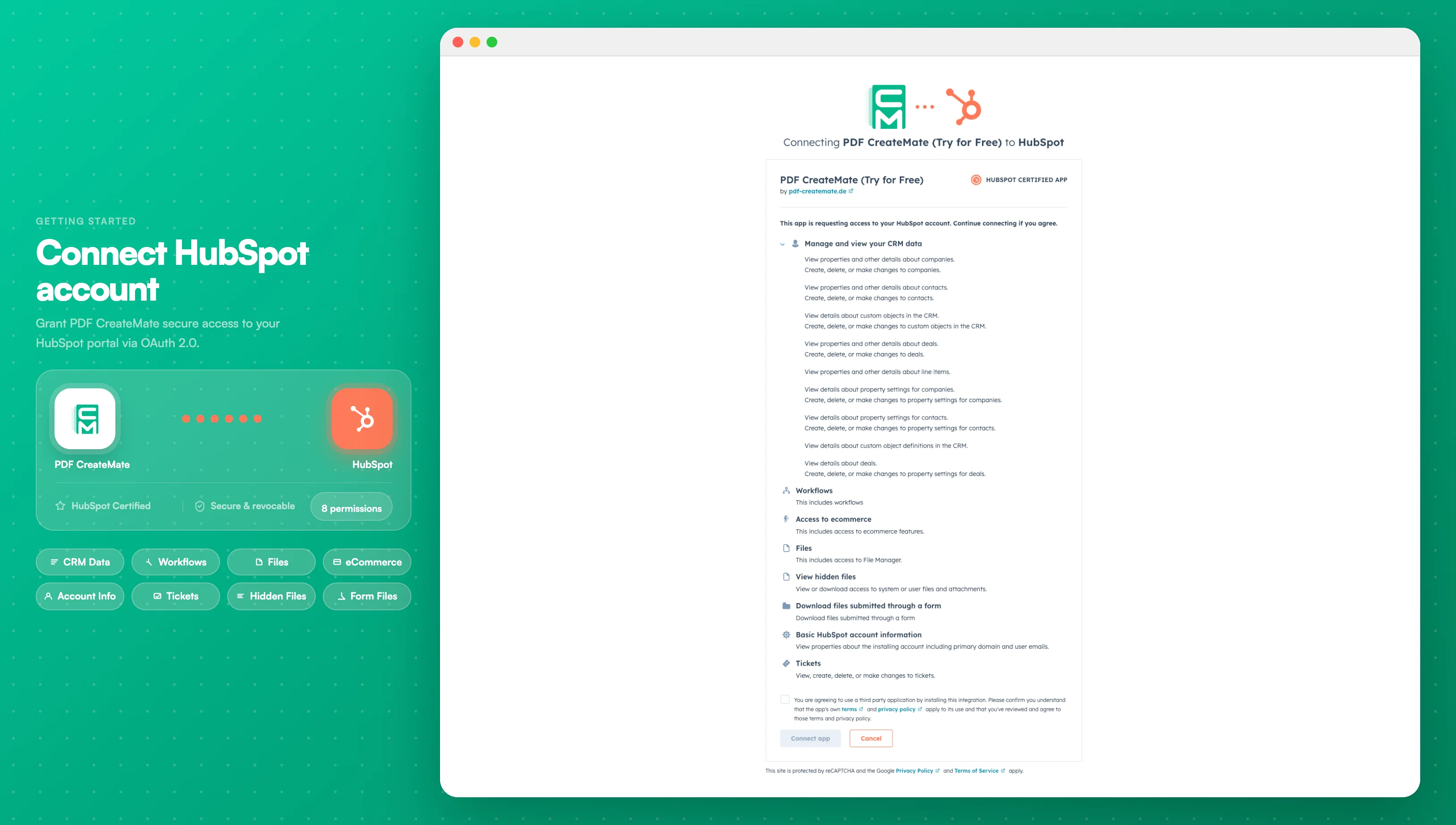
Image description
The HubSpot authorization screen shows:
- The PDF CreateMate app logo and name at the top
- A list of permission categories being requested (CRM objects, Account settings, etc.)
- The specific access level for each category (Read, Write, or Read/Write)
- A blue "Connect app" button at the bottom to approve the connection
- Your HubSpot account name to confirm you're connecting the correct portal
- The PDF CreateMate app logo and name at the top
- A list of permission categories being requested (CRM objects, Account settings, etc.)
- The specific access level for each category (Read, Write, or Read/Write)
- A blue "Connect app" button at the bottom to approve the connection
- Your HubSpot account name to confirm you're connecting the correct portal
- After successful connection, you'll be automatically redirected back to the PDF CreateMate platform.
After connecting
PDF CreateMate asks a few short questions to set up your account:
- Documents you create: for example invoices, contracts or certificates.
- Signatures: whether your documents need to be signed.
- Primary HubSpot object: the record type you'll use most, such as Contact or Deal. You can create templates for any supported object later.
- Create your first template: you land in the template builder. See Upload Template.