


Templates
Version History & Rollback
PDF CreateMate keeps a history of your template versions so you can review past changes and roll back if needed. Every time your template file changes, a new version is recorded with a snapshot of the document.
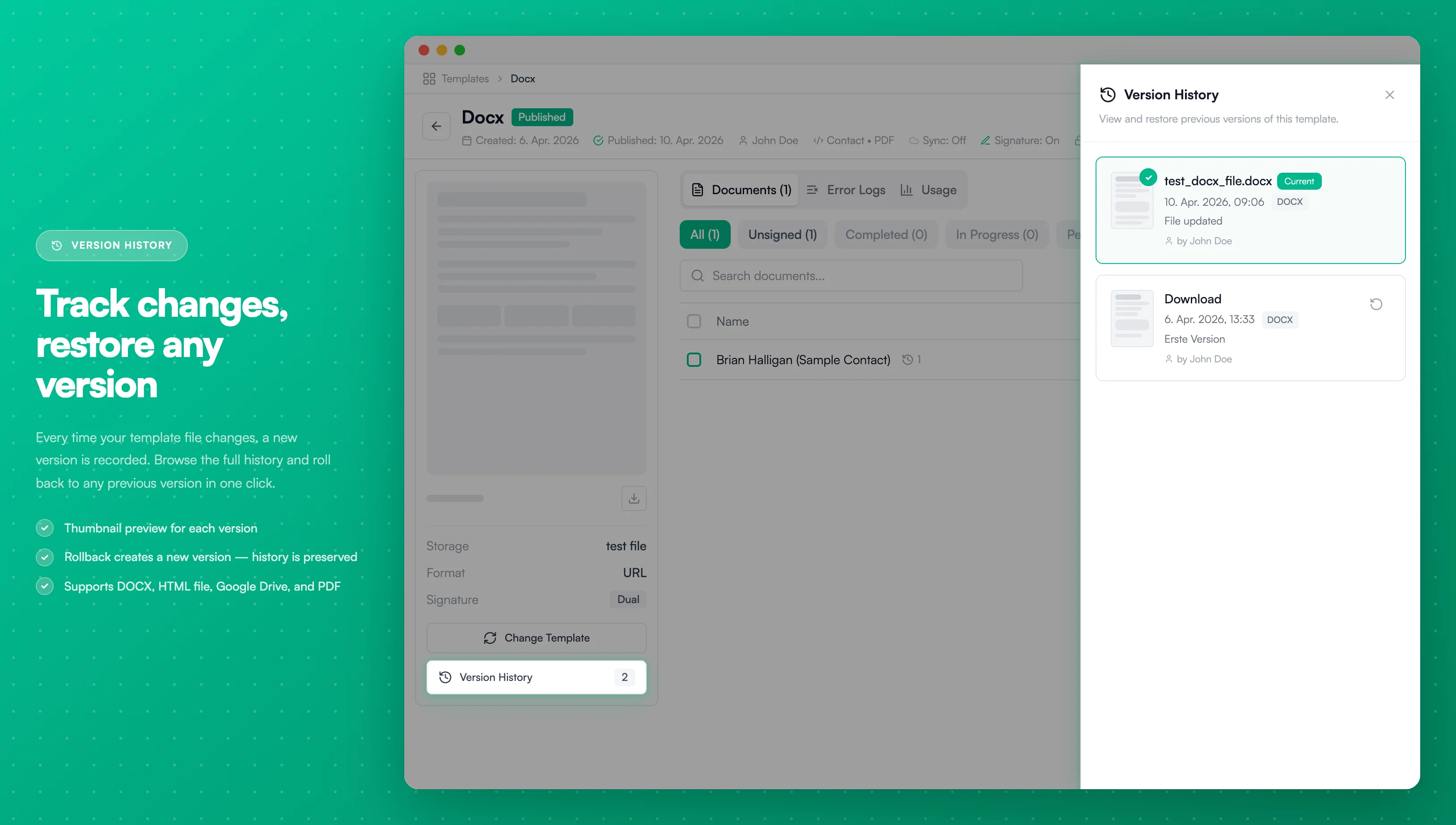
Image description
The Version History panel shows:
- A slide-out sidebar listing all template versions
- The current version highlighted with a green border and "Current" badge
- Each version displays a thumbnail, file name, date, file type badge, and change summary
- A "by" attribution showing who made the change
- A rollback button on older versions to restore them
- A Version History button in the template sidebar with the version count
- A slide-out sidebar listing all template versions
- The current version highlighted with a green border and "Current" badge
- Each version displays a thumbnail, file name, date, file type badge, and change summary
- A "by" attribution showing who made the change
- A rollback button on older versions to restore them
- A Version History button in the template sidebar with the version count
Version history tracks changes to the template file itself. Configuration changes (like settings or property mappings) are saved separately via auto-save.
Supported Template Types
Version history is available for:
- Word (Word file upload)
- HTML file (uploaded HTML file)
- Google Drive (imported from Google Docs)
- PDF (uploaded PDF file)
HTML code templates (where you paste HTML directly) do not support version history. A notice is shown on the template page for these templates.
Viewing Version History
- Go to Templates and open your template
- Click the Version History button in the sidebar — the button only appears after you have changed the template file at least once and a version has been recorded
- A side panel opens showing all versions from newest to oldest
Each version displays:
| Detail | Description |
|---|---|
| Version number | Sequential number (e.g., Version 1, Version 2) |
| Thumbnail | Visual preview of the document |
| File type | The document format (e.g., Word, Google Docs PDF, HTML) |
| Created by | The team member who made the change |
| Date | When the version was created |
| Change summary | Brief description of what changed |
The current active version is highlighted with a green indicator and a checkmark.
Rolling Back to a Previous Version
If a recent change introduced problems, you can restore any previous version:
- Open the Version History panel
- Find the version you want to restore
- Click Rollback next to that version — this button is only shown for non-current versions whose file is still available
- Confirm the action in the dialog
Rollback creates a new version based on the selected one — it does not delete any history. Your full version timeline is always preserved.
After rollback:
- A new version is created with the restored file (labeled "Rolled back to version X")
- The template immediately uses the restored document
- All future document generations use the restored version
Rollback restores the template file only. Template settings (property mappings, storage property, file naming, etc.) are not affected.
When to Use Rollback
- You uploaded a new template file but it contains errors
- Placeholder formatting broke after a document update
- You want to revert to a version that was working correctly
- A team member made unintended changes to the template
Version Limits
PDF CreateMate retains up to 20 versions per template. When the limit is reached, the oldest versions are automatically removed to make room for new ones.
Related Documentation
- Upload Template — How to upload and update template files
- Create Template — Designing templates with placeholders