


Signatures
Sign Documents
Once a signable template generates a document, you can sign it through the PDF CreateMate interface or via the shareable signing URL.
Signing from PDF CreateMate
- Navigate to the Template Detail screen for your enrolled objects. You'll see Sign and Countersign buttons for templates requiring signatures.
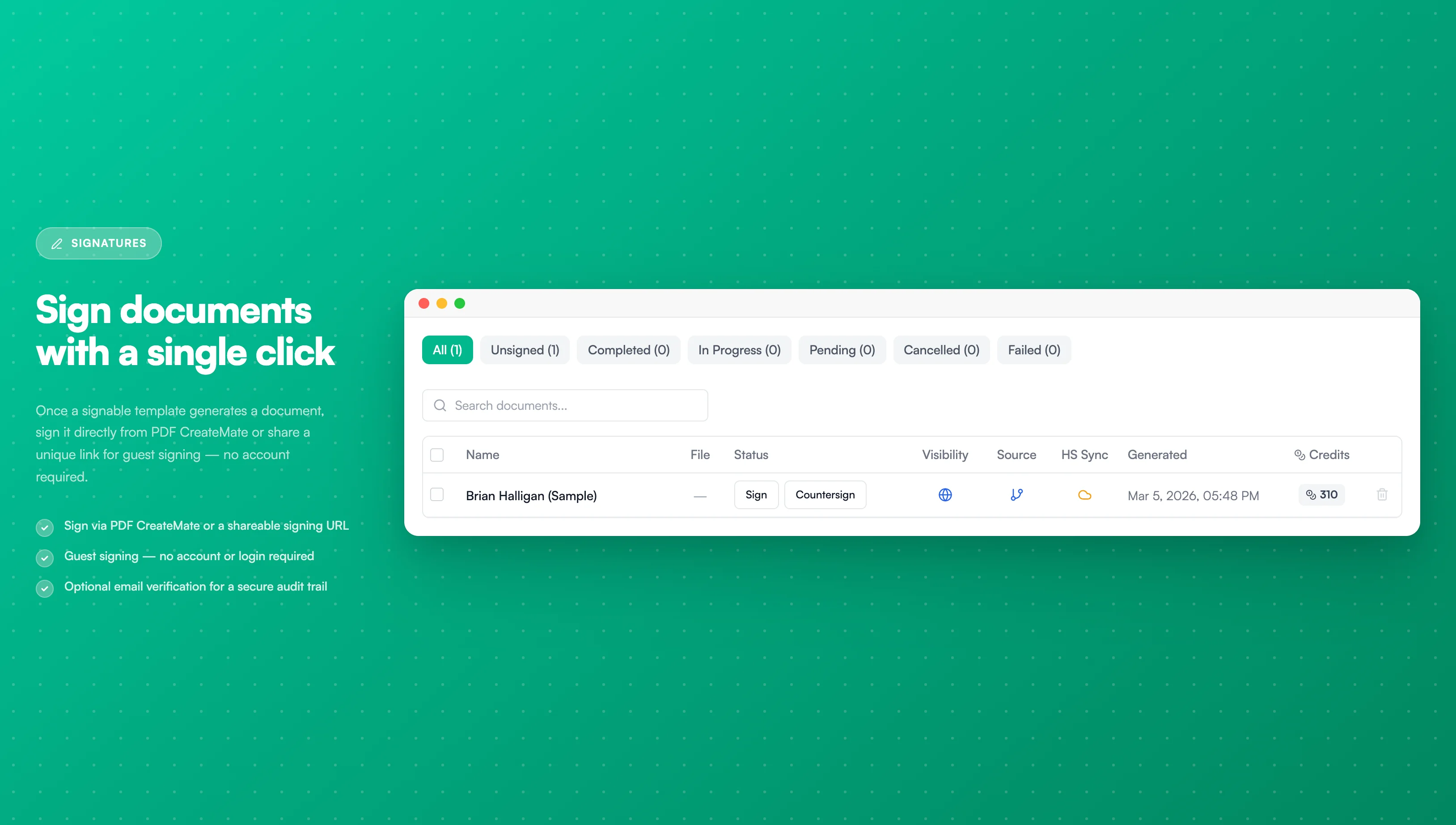
Image description
The template detail screen displays:
- A preview of the document to be signed
- A signature box where users can draw their signature
- A "Clear" button to clear the signature
- A "Sign Document" button to submit the signature
- A preview of the document to be signed
- A signature box where users can draw their signature
- A "Clear" button to clear the signature
- A "Sign Document" button to submit the signature
- Click any sign button to open the signature page.
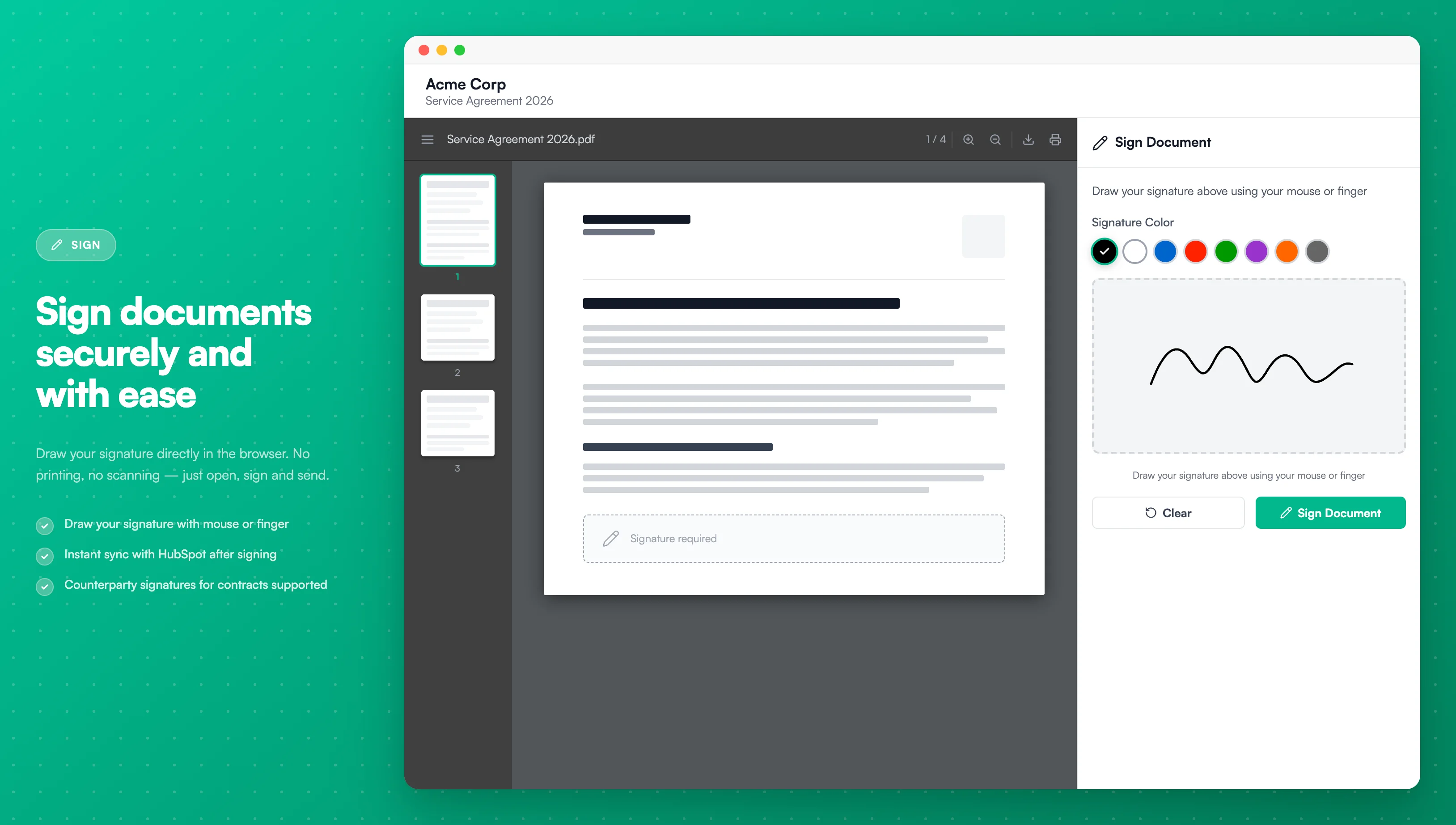
Image description
The signature page shows:
- A preview of the document to be signed
- A signature canvas/box where users draw their signature
- The signer's name displayed
- "Sign" button to submit the signature
- "Clear Signature" button to reset the canvas
- A preview of the document to be signed
- A signature canvas/box where users draw their signature
- The signer's name displayed
- "Sign" button to submit the signature
- "Clear Signature" button to reset the canvas
-
Draw your signature in the signature box. Use Clear Signature to reset if needed.
-
If the template has Email verification enabled, signers must:
- Enter their email (prefilled and locked if a HubSpot email property is configured).
- Receive a 6-digit code via email and enter it within 10 minutes (max 5 attempts).
- Provide their full name after successful verification.
-
Click Sign to complete the signing process.
Guest Signing
Recipients without PDF CreateMate accounts can sign via the shareable signing URL.
How Guest Signing Works
- URL Generation: When a document is generated, PDF CreateMate creates a unique signing URL and stores it in the HubSpot property you configured during template setup
- Share the Link: Send the URL to recipients via:
- Email (manual or automated through HubSpot workflows)
- SMS or chat applications
- Any other communication channel
- Guest Access: Recipients click the link to access a secure signing page
- Sign & Submit: They can view the document, draw their signature, and submit—no account or login required
Guest Experience
When a guest opens the signing URL, they will:
- View the document: See a preview of the PDF to be signed
- Email verification (if enabled): If the template requires email verification:
- Enter their email address
- Receive a 6-digit OTP code
- Enter the code to verify their identity (10-minute expiration, 5 attempts max)
- Provide their full name
- Draw signature: Use the signature canvas to draw their signature
- Submit: Click the sign button to complete the process
- Confirmation: See a customized thank-you message (configured in template settings)
Security Features
- Unique URLs: Each signing URL is unique and tied to a specific document
- Secure access: Links are cryptographically signed to prevent tampering
- Email verification: Optional OTP verification ensures only intended recipients can sign
- Audit trail: All signature events are logged with timestamps and IP addresses
- One-time use: Once all required signatures are collected, the document is finalized
Link Validity
- Active until signed: Guest signing URLs remain active until the document is fully signed
- No expiration: Links do not expire automatically, allowing flexibility in collection timing
- Regeneration: If needed, you can regenerate the document to create a new signing URL
Use Cases
- Client contracts: Send proposals and agreements to clients for signature
- Vendor agreements: Collect signatures from suppliers or partners
- Employment documents: Have new hires sign offer letters or contracts
- Service agreements: Get customer signatures on terms of service
- NDAs: Secure confidentiality agreements from external parties
For automated signature collection, use HubSpot workflows to send personalized emails with the signing URL when a document is generated. This creates a seamless signing experience for your recipients.
Troubleshooting Guest Signing
Issue: Guest cannot access the signing page
- Verify the URL was copied completely without line breaks
- Check that the document hasn't already been signed
- Ensure the template is still active
Issue: Email verification code not received
- Check spam/junk folders
- Wait a few minutes for email delivery
- Request a new code if expired (10-minute limit)
- Verify the email address was entered correctly
After Signing
- If both required signatures are collected, PDF CreateMate triggers document generation, creates a HubSpot note with signer details, and attaches the generated file to the record.
- The signed document is automatically updated in HubSpot
- A timestamp records when the signature was added
- For counterparty signatures, both parties' signatures appear in the final document
Credit usage when signing: Signature enabled adds 200 credits over the base document (total: 300 credits); Counterparty signature adds another 100 credits (total: 400 credits); Email verification adds 15 credits per required signature.