


Templates
Create personalized template
This step can be done outside PDF CreateMate (Word, Google Docs, OpenOffice), inside PDF CreateMate using the HTML paste/upload option, or by uploading a PDF form with fillable fields.
- Start by either creating a new document file or opening an existing one. You can work in Word (.docx), Google Docs (imported directly in PDF CreateMate), or use a PDF form with interactive fields.
- Visit Properties to search and copy HubSpot properties for your selected object type (Contact, Company, Deal, or Ticket) by simply clicking on copy.
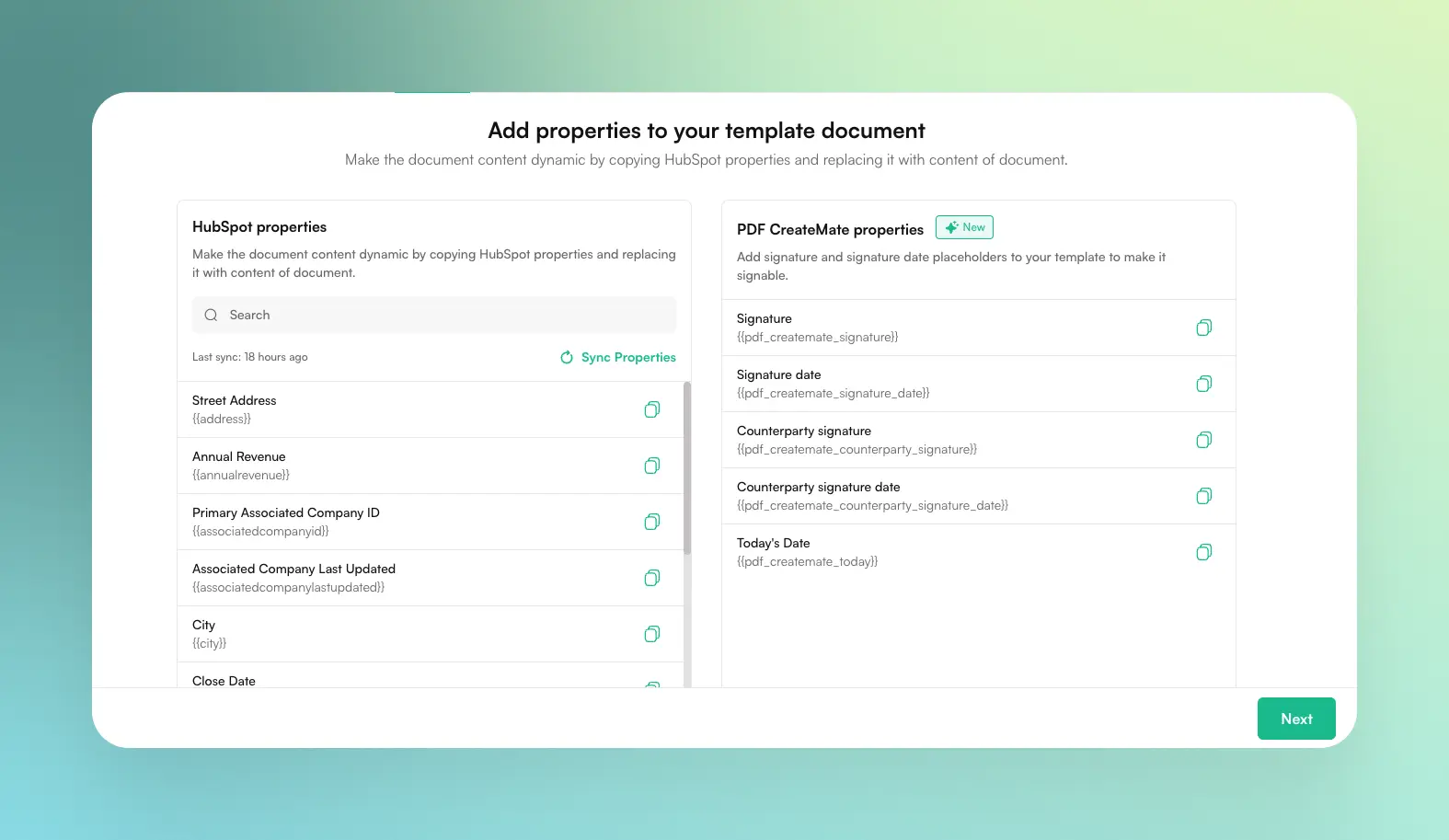
Image description
The property screen displays:
- A search bar to filter properties by name
- A sync button with a "Last synced" timestamp
- Two sections: HubSpot Properties and PDF CreateMate Properties
- A list of available properties with their placeholder variables (e.g., {{property_name}})
- One-click copy buttons next to each property placeholder
- A search bar to filter properties by name
- A sync button with a "Last synced" timestamp
- Two sections: HubSpot Properties and PDF CreateMate Properties
- A list of available properties with their placeholder variables (e.g., {{property_name}})
- One-click copy buttons next to each property placeholder
- In your document, identify and replace static text with the copied HubSpot contact properties.
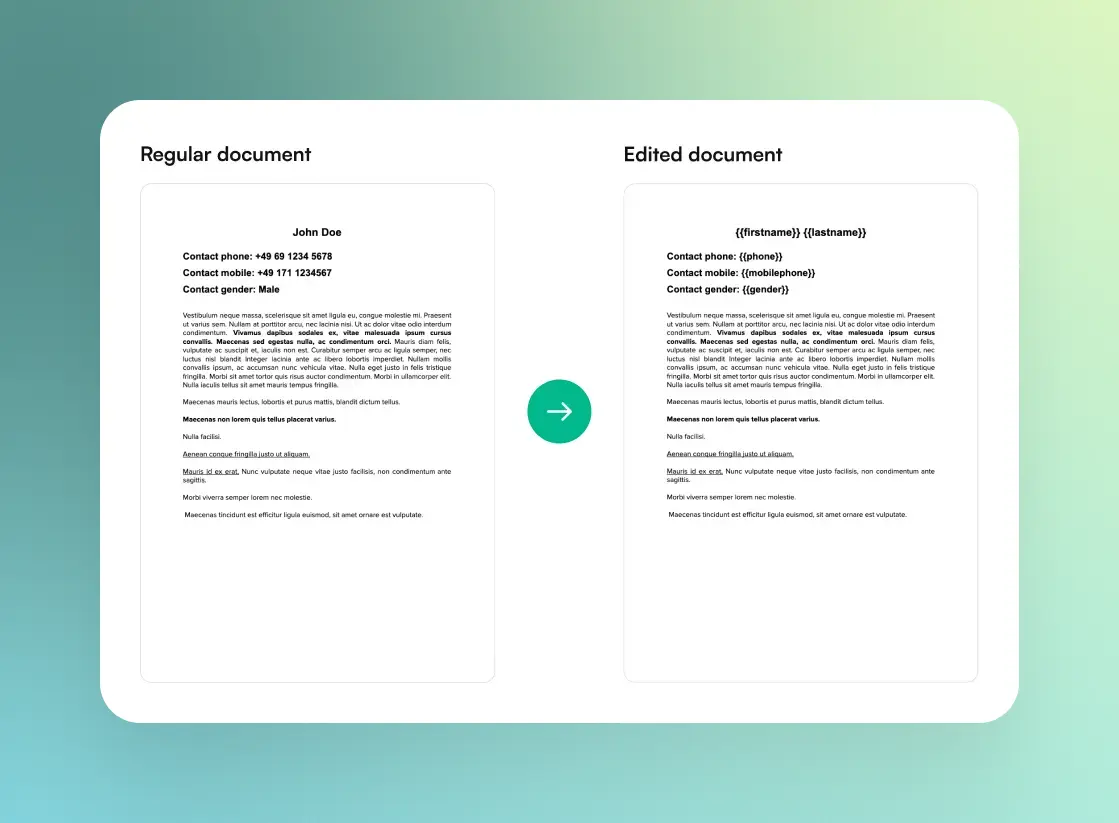
Image description
The example document shows:
- Original static text like "John Doe" replaced with {{firstname}} {{lastname}}
- Company name replaced with {{company}} placeholder
- Email address replaced with {{email}} placeholder
- The double curly brace syntax {{property_name}} for all dynamic fields
- Original static text like "John Doe" replaced with {{firstname}} {{lastname}}
- Company name replaced with {{company}} placeholder
- Email address replaced with {{email}} placeholder
- The double curly brace syntax {{property_name}} for all dynamic fields
Flexible placeholder syntax is supported. Use {{firstname}} or ${firstname}, and whitespace is allowed: {{ firstname }} and ${ firstname } work too.
PDF CreateMate Built-in Placeholders
In addition to HubSpot properties, PDF CreateMate provides built-in placeholders you can use in your templates. These are listed under the PDF CreateMate Properties tab on the Properties page.
| Placeholder | Description | Example Output |
|---|---|---|
{{todayDate}} |
Current date at generation time, formatted according to your Date Format settings | 26/03/2026 |
{{pdf_createmate_line_items}} |
Deal line items table — Deal templates, Word, Google Docs, and HTML formats. Not supported in PDF-to-PDF. See Deal Line Items for details. | formatted table |
Example: If your date format is set to DD/MM/YYYY and you generate on March 23, 2026, {{todayDate}} outputs 23/03/2026.
To add currency or other symbols in number formats, type the symbol manually either before or after the HubSpot property placeholder. For example, to display revenue with the € symbol, enter {{revenue}}€. If {{revenue}} is 100, the output will be shown as 100€.
- After ensuring all necessary text replacements have been made, download or save your document in the .docx format (or provide the Google Docs link when importing).
Alternatively, you can use PDF Forms to upload a PDF with interactive form fields and map them to HubSpot properties without adding placeholders manually.