


Generate Documents
Manual Generation
Generate documents on-demand without setting up an automated workflow. This is useful for one-off documents, backfills, or testing a template. There are two ways to do it — pick the one that fits how many records you need.
Option 1: Generate from the template page (single record)
The quickest way to create a one-off document, straight from PDF CreateMate:
- Open the published template in PDF CreateMate.
- Click the Generate button.
- Paste the HubSpot record ID or record URL you want to generate for.
- Click Generate Document.
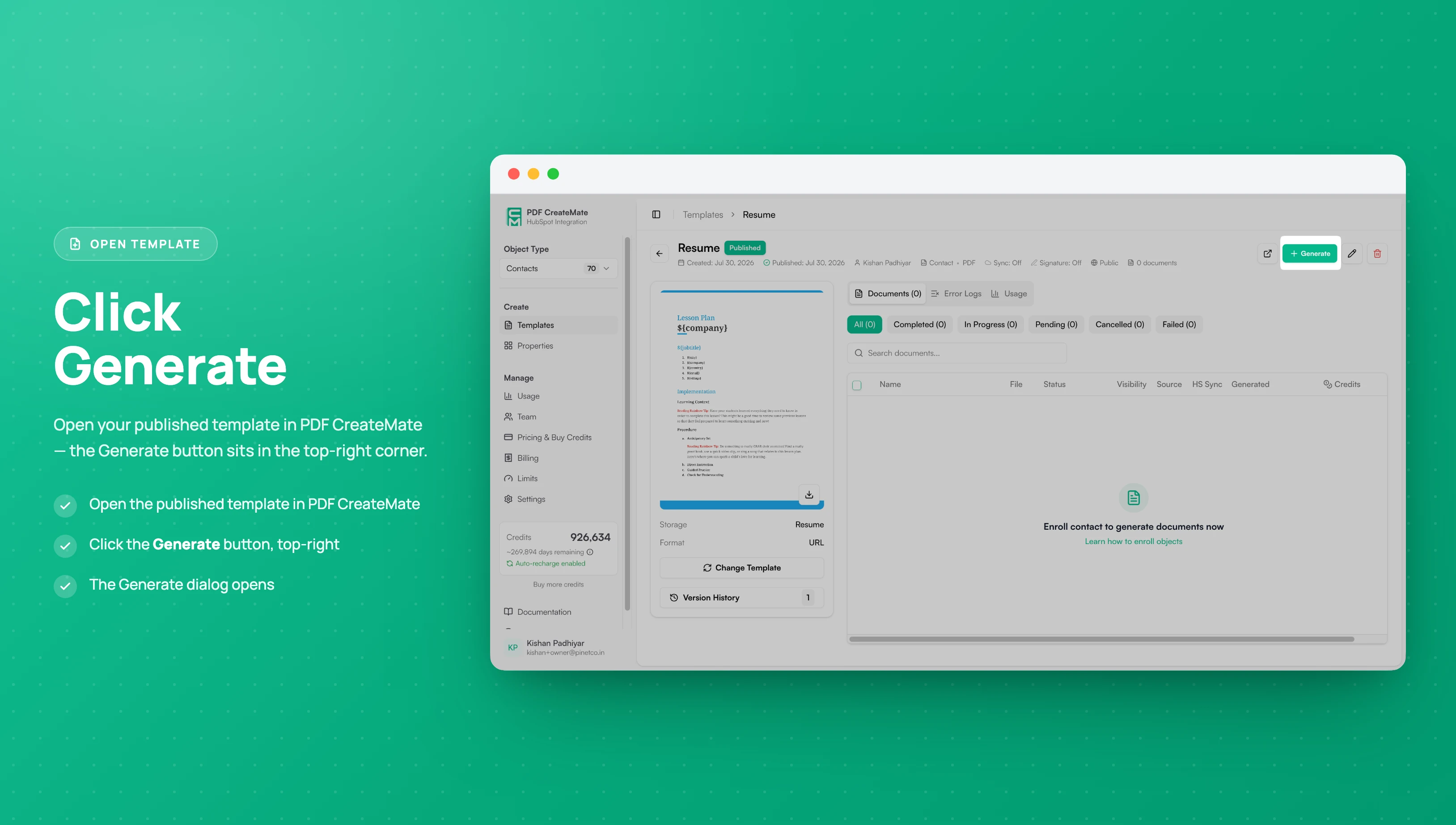
Image description
The published template page shows:
- The "Generate" button in the top-right corner
- Template details, storage, and format on the left
- The documents list, empty until you generate for a record
- The "Generate" button in the top-right corner
- Template details, storage, and format on the left
- The documents list, empty until you generate for a record
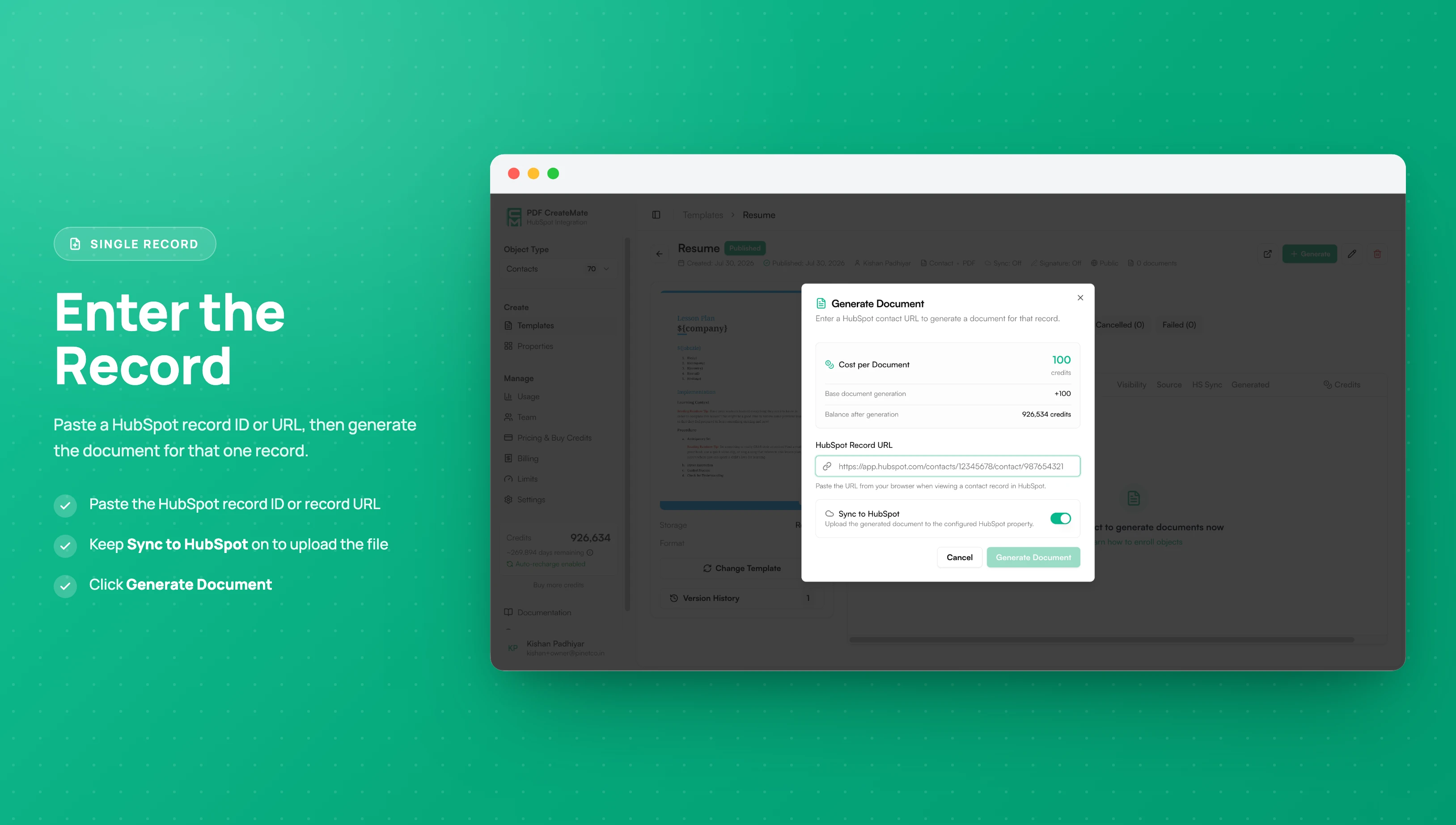
Image description
The Generate Document dialog shows:
- The credit cost for this document
- The field where you paste a HubSpot record ID or record URL
- The "Sync to HubSpot" toggle and the "Generate Document" action
- The credit cost for this document
- The field where you paste a HubSpot record ID or record URL
- The "Sync to HubSpot" toggle and the "Generate Document" action
PDF CreateMate generates the document for that record using your template settings, updates pdf_generated_for_template, and writes the document link to the template's configured file property.
The Generate button appears on the template page once the template is published. This is the fastest way to produce a single document without leaving PDF CreateMate.
Option 2: Bulk-generate from HubSpot (multiple records)
To generate for many records at once, use HubSpot's bulk edit:
- Open the HubSpot object list (contacts, companies, deals, or tickets).
- Select the record(s) you want to generate for.
- Click Edit in the bulk toolbar.
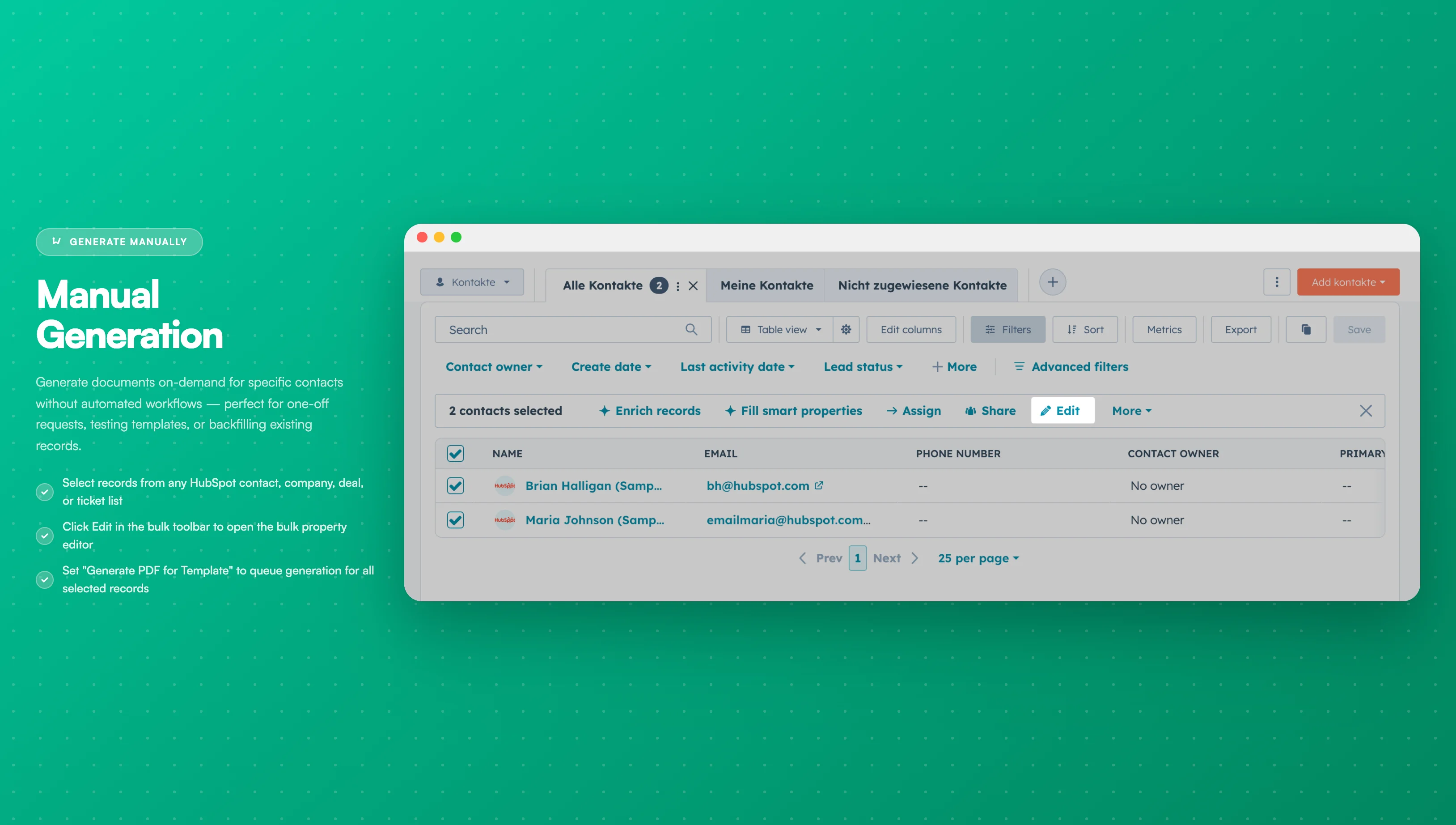
Image description
The contact list view shows:
- Multiple contacts selected with checkboxes
- The "Edit" button in the toolbar above the list
- The number of selected contacts displayed
- Contact names and email addresses visible in the list
- Multiple contacts selected with checkboxes
- The "Edit" button in the toolbar above the list
- The number of selected contacts displayed
- Contact names and email addresses visible in the list
- Search for the
Generate PDF for Templateproperty. - Choose one or more template UUIDs (semicolon-separated) from the dropdown. Only templates configured for that object type and HubSpot-enabled appear.
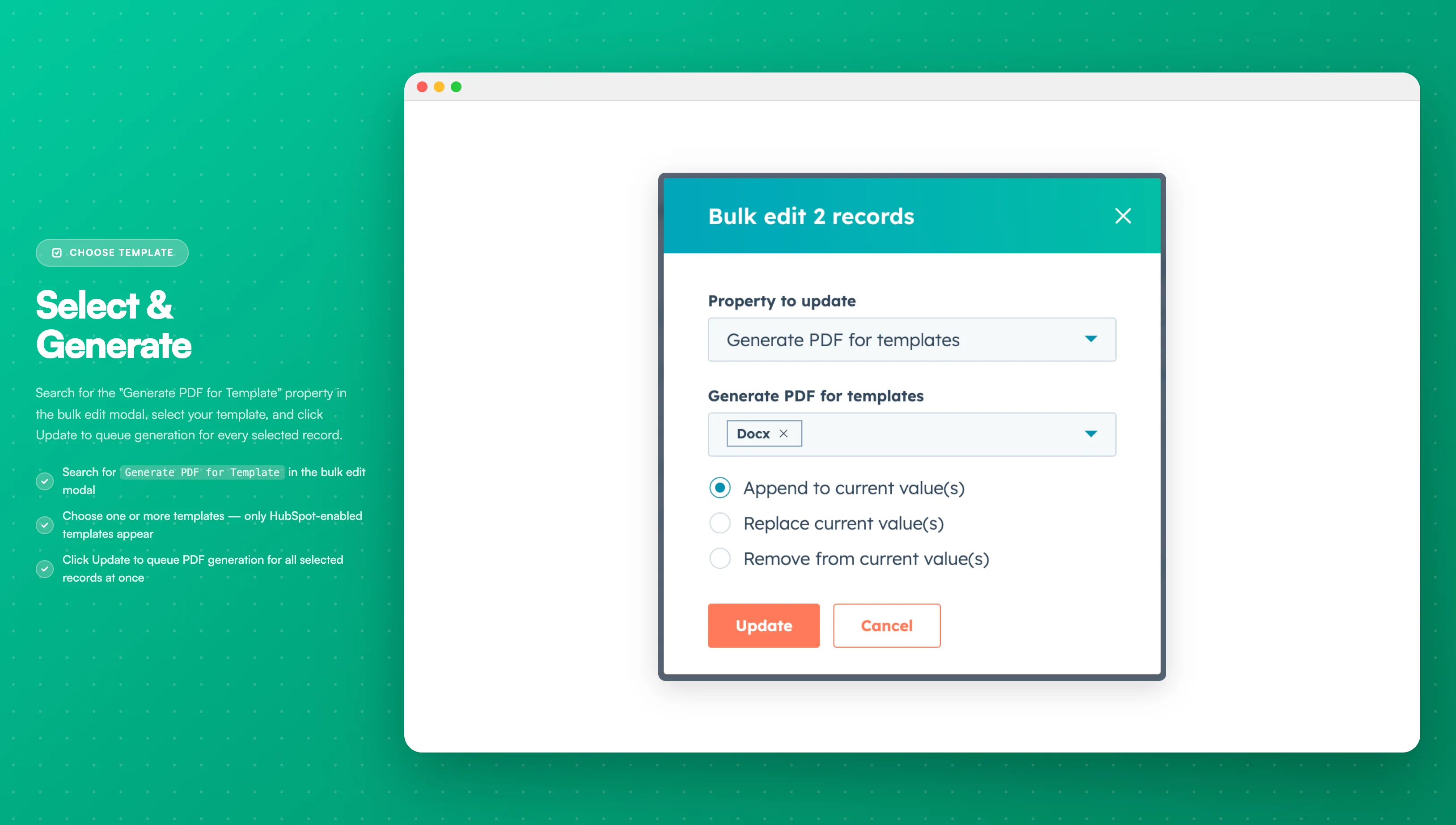
Image description
The bulk edit modal displays:
- A search field with "Generate PDF for Template" entered
- A dropdown list showing available templates
- Template names from PDF CreateMate
- The "Update" button to apply the selection
- A search field with "Generate PDF for Template" entered
- A dropdown list showing available templates
- Template names from PDF CreateMate
- The "Update" button to apply the selection
- Confirm by clicking Update.
- PDF CreateMate queues generation for each selected record. When finished, it updates
pdf_generated_for_templateand writes the document link to the template’s configured file property.
To streamline this manual process, consider setting up a filtered contact list. This list can be based on specific criteria to easily identify the contacts for which you want to generate documents. Think of these filters as your manual trigger conditions.
Use Cases for Manual Generation
| Scenario | When to Use |
|---|---|
| Testing | Verify templates before production use |
| One-off documents | Special requests outside normal automation |
| Backfill | Generate documents for existing contacts |
| Corrections | Regenerate after fixing template issues |
Tips for Bulk Generation
- Start with small batches to verify output
- Use saved views/filters for consistent selection
- Check credit balance before large batches
- Monitor the template detail screen for progress
Next Steps
After generating documents manually:
- Access your documents
- Set up automation for future documents