


Generate Documents
Regenerate Documents
When contact data changes or you need to update an existing document, you can regenerate it to reflect the latest information. There are two methods: from PDF CreateMate or from HubSpot.
Method 1: From PDF CreateMate (Recommended)
The easiest way to regenerate documents is directly from the PDF CreateMate template detail page.
- Navigate to your template's detail screen for enrolled objects
- Select the records you want to regenerate
- Click Retry/Regenerate
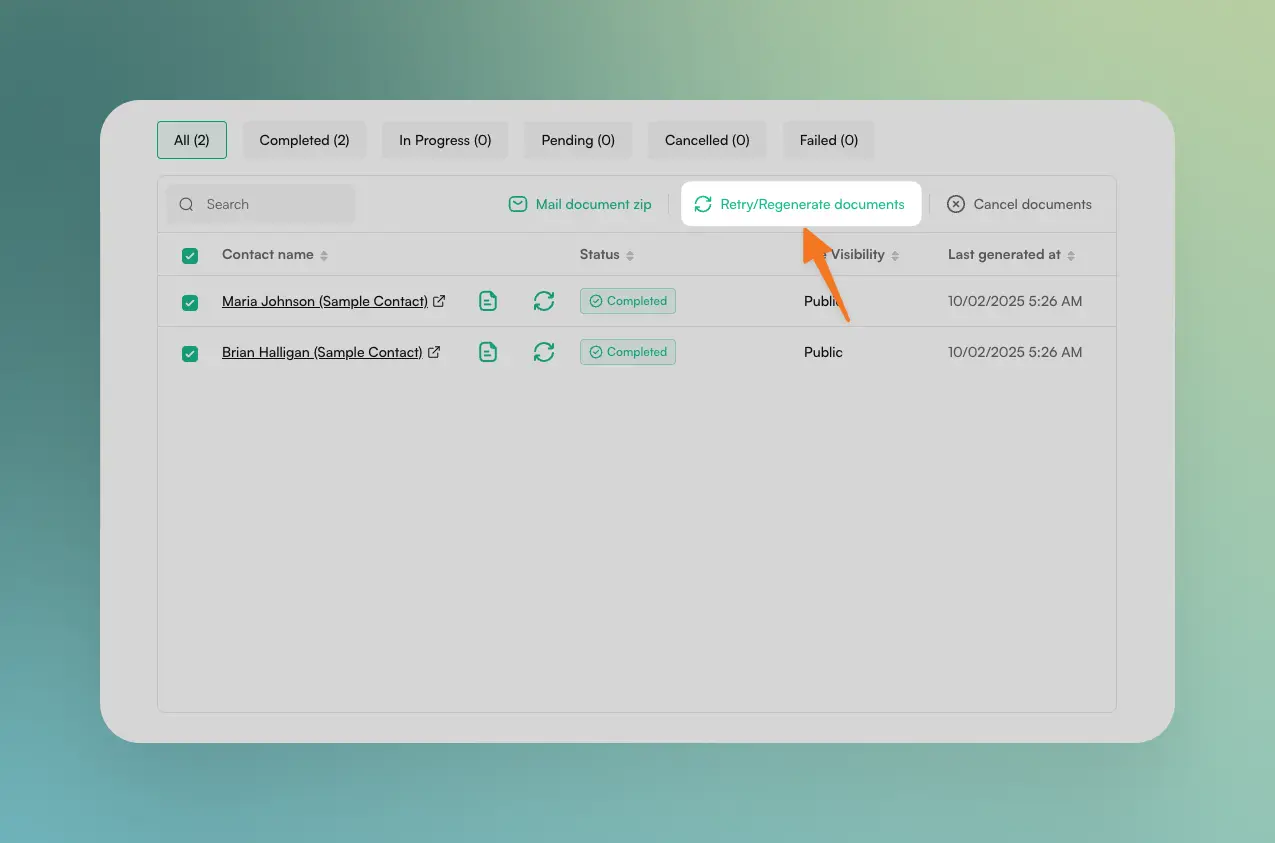
Image description
- A list of contacts for whom documents were generated using the template
- Checkboxes to select multiple contacts
- A "Retry" button in the toolbar to regenerate documents
- Status indicators for each contact’s document (Completed, Pending, Failed)
PDF CreateMate will process and regenerate documents for the selected contact(s).
Method 2: From HubSpot
You can also trigger regeneration directly from HubSpot by resetting and re-setting the trigger properties (generate_pdf_for_template / pdf_generated_for_template).
Step 1: Clear the Properties
- Navigate to your contact list in HubSpot
- Select the contact(s) to regenerate
- Click the Edit button
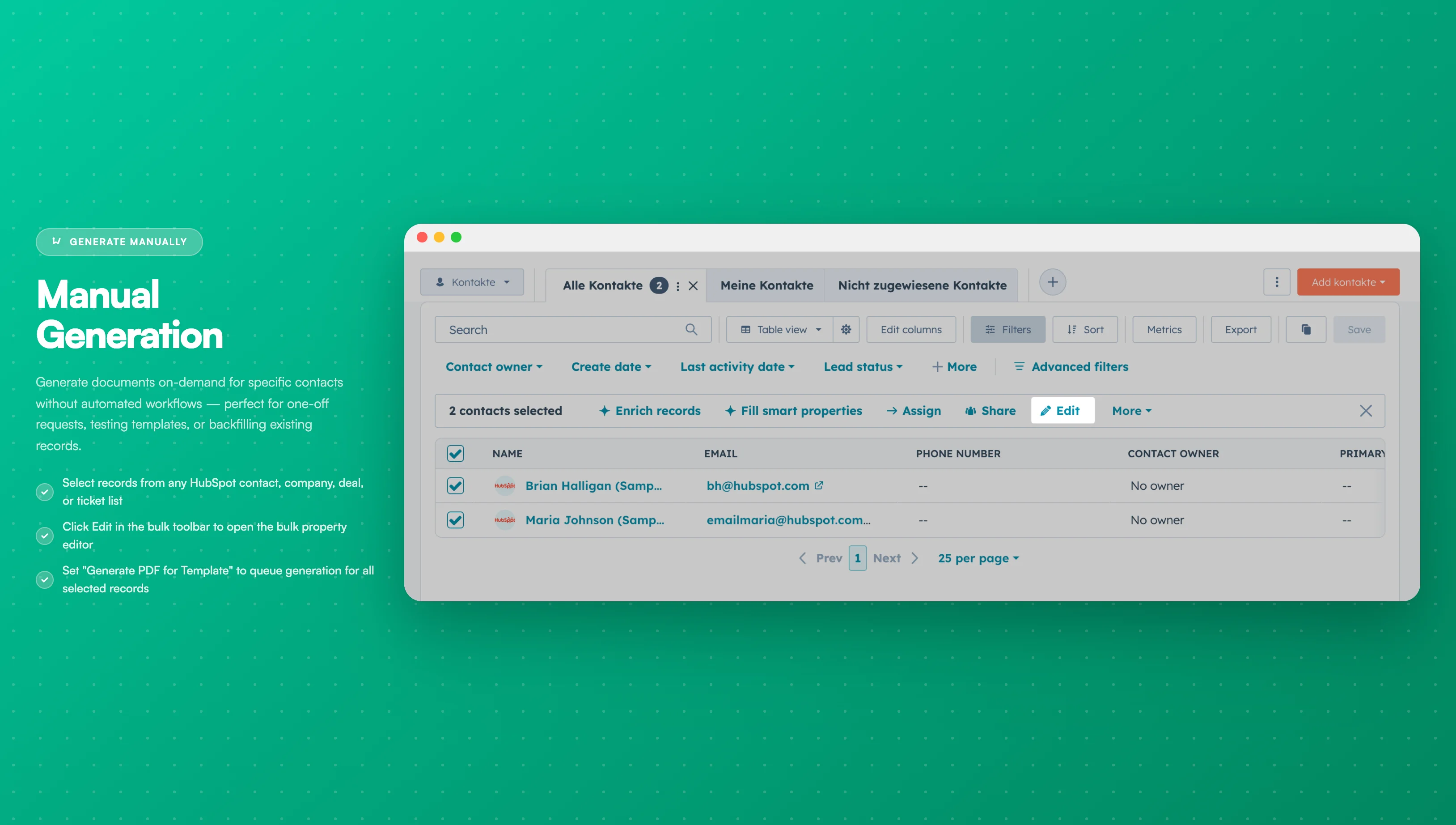
Image description
- Multiple contacts selected with checkboxes
- The "Edit" button in the toolbar
- Contact names and details in the list
- Search for Generate PDF for Template and clear the template UUID(s)
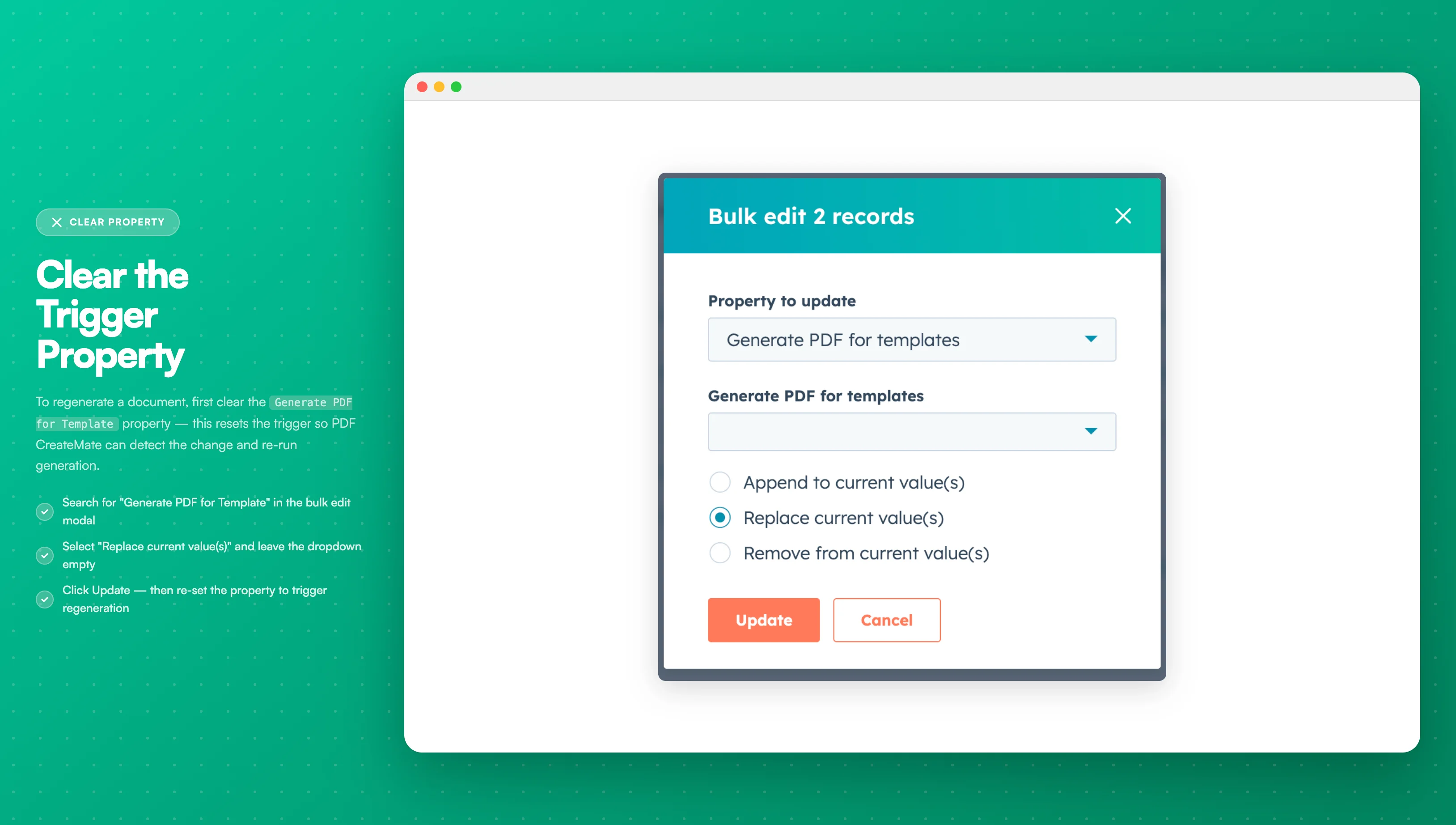
Image description
- The "Generate PDF for Template" property selected
- The current template value being cleared
- The remove/clear option highlighted
- Search for PDF generated for Template and clear the template UUID(s)
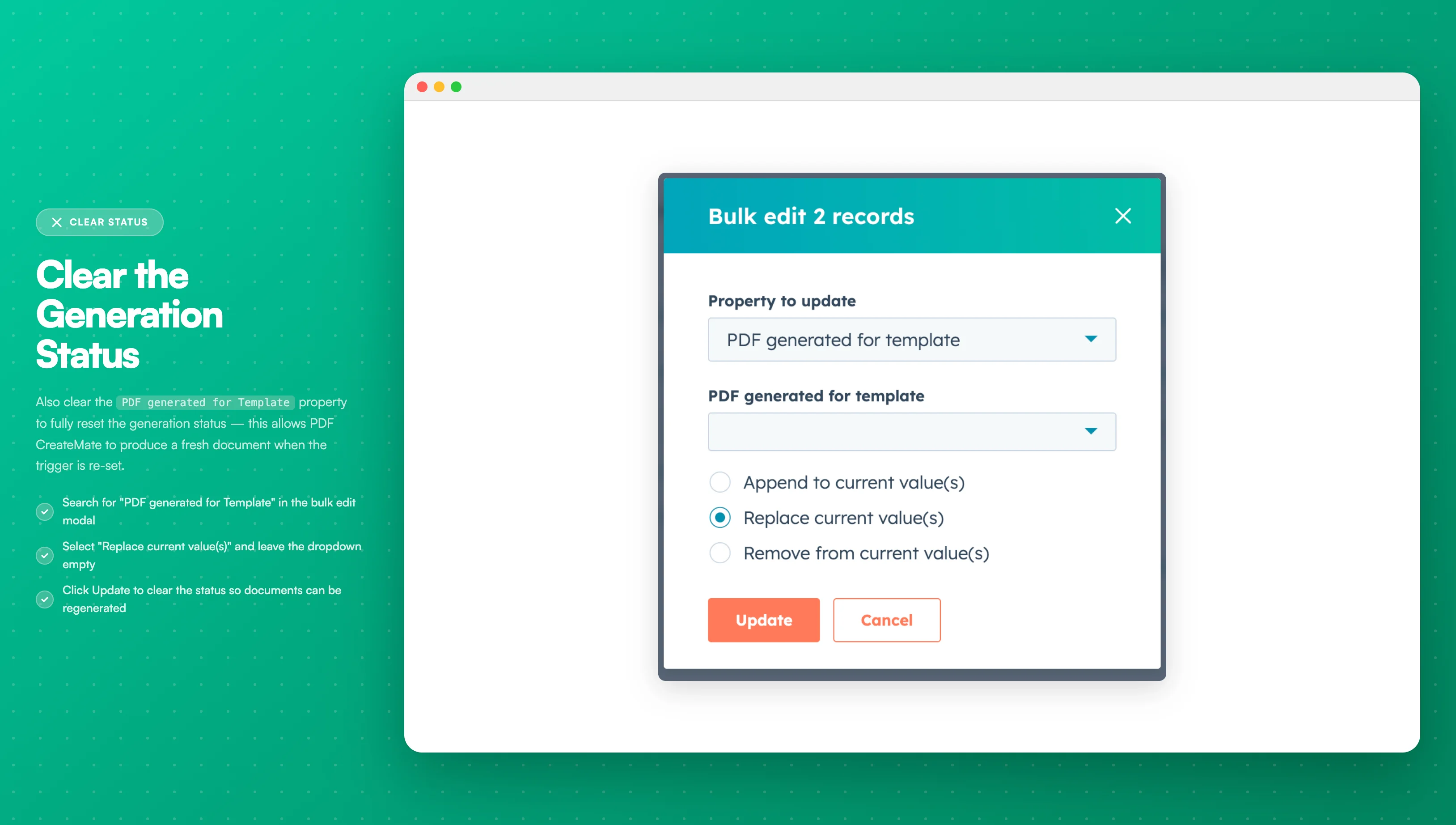
Image description
- The "PDF generated for Template" property
- Option to clear/remove the template value
- This resets the generation status so documents can be regenerated
- Click Update to save changes
Step 2: Trigger Regeneration
- Click Edit again
- Search for Generate PDF for Template
- Set the template UUID(s) to regenerate (semicolon-separated if multiple)
- Click Update
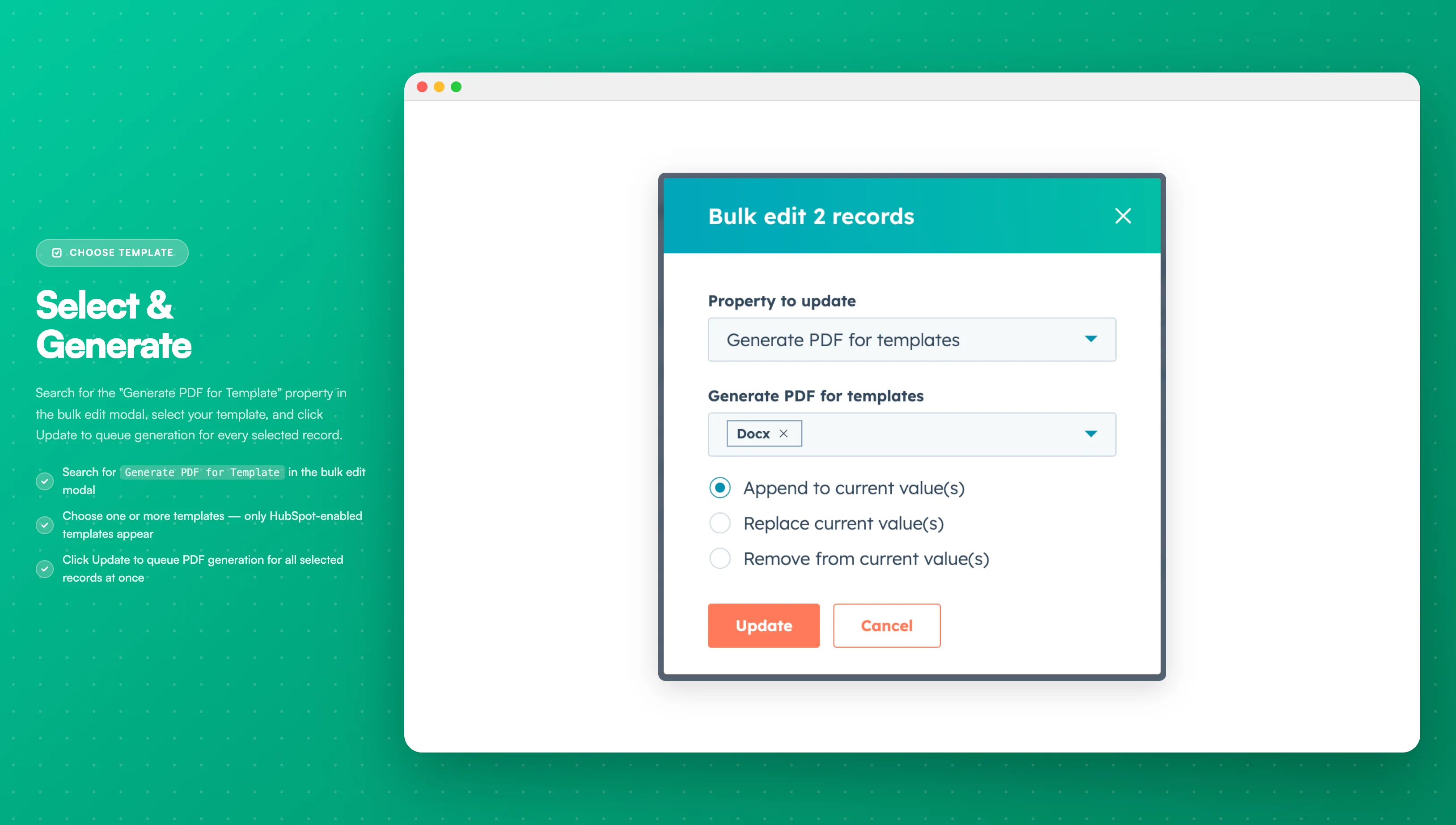
Image description
- The "Generate PDF for Template" property
- A dropdown list of available templates
- The template to be regenerated selected
PDF CreateMate will detect the property change and regenerate the documents for that record. After completion, pdf_generated_for_template is updated again and the document link is refreshed in the configured file property.
How It Works
When to Regenerate
- Contact information has been updated
- Template design has changed
- Default property values have been modified
- Previous generation failed or had errors
- You need an updated version with current data