


Document Management
Private Document Storage
By default, PDF CreateMate stores generated documents with public (non-indexable) visibility in HubSpot. This means anyone with the file link can access the document. For sensitive documents that require restricted access, you can enable Private Document Storage.
What is Private Document Storage?
Private document storage sets the file visibility to "Private" in HubSpot's file manager. This ensures that:
- Only authenticated users with appropriate HubSpot permissions can access the document
- Links cannot be shared publicly—recipients must log in to HubSpot to view the file
- Enhanced security for confidential documents like contracts, financial statements, or sensitive client information
How It Works
When you enable private storage for a template:
- File visibility set to Private: Generated documents are uploaded to HubSpot with "Private" visibility
- Access control: Only users logged into your HubSpot portal with appropriate permissions can view the file
- Secure sharing: Documents cannot be accessed via direct link without authentication
- HubSpot integration: Files appear in HubSpot Files (Marketing → Files) and on contact/company/deal records as usual, but with private access restrictions
When to Use Private Storage
Recommended Use Cases
- Financial documents: Invoices, quotes, and financial statements containing sensitive pricing or payment information
- Legal contracts: NDAs, employment contracts, and other legally binding documents
- Client data: Documents containing personally identifiable information (PII) or sensitive client details
- Internal reports: Documents intended only for internal team members with HubSpot access
- Compliance requirements: When regulations require restricted document access
When NOT to Use Private Storage
- Client-facing documents: If clients need to access documents via direct link without HubSpot login
- Public-facing materials: Marketing materials, brochures, or public-facing PDFs
- Documents for external signatures: If you need external parties to sign without HubSpot access (use public storage with signature URLs instead)
- Email attachments: If you want to send documents as direct download links in automated emails
Enabling Private Storage
During Template Setup
- Navigate to your template in PDF CreateMate
- Open the template settings
- Find the File Visibility option
- Select "Private" from the radio button options
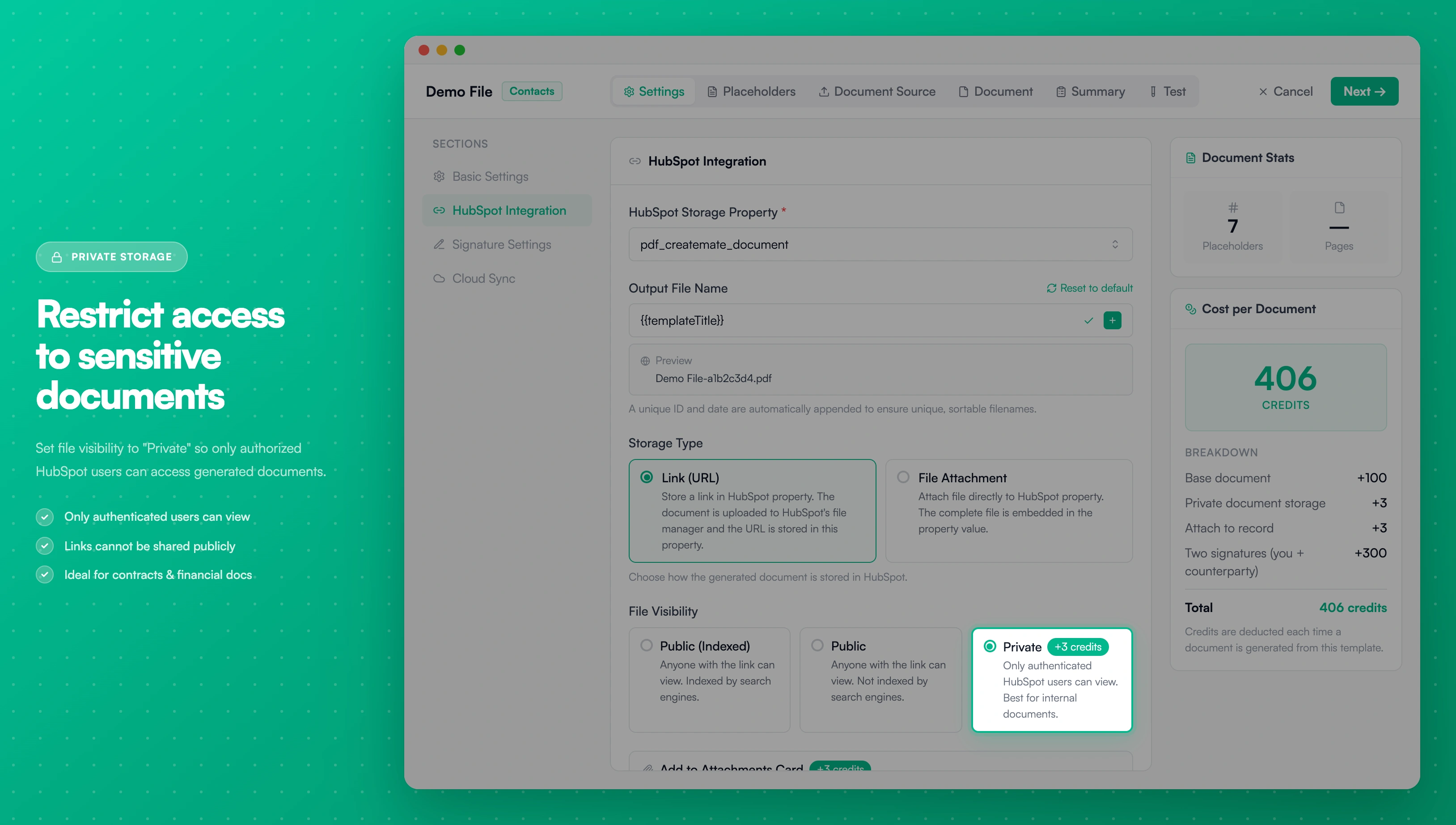
Image description
- Private - Requires HubSpot login and permissions
For Existing Templates
You can change the visibility setting at any time:
- Edit the template configuration
- Change File Visibility to "Private"
- Save changes
- Note: This only affects newly generated documents. Previously generated documents retain their original visibility setting
Credit Cost
Enabling private document storage adds 3 credits to the document generation cost.
| Setting | Base Cost | Private Storage | Total |
|---|---|---|---|
| Standard document | 100 credits | +3 credits | 103 credits |
| Document with signature | 300 credits | +3 credits | 303 credits |
| Document with counterparty | 400 credits | +3 credits | 403 credits |
Access Control in HubSpot
Who Can Access Private Documents
Private documents follow HubSpot's standard file permission system:
- Super Admins: Full access to all private files
- Users with Files permissions: Access based on their role and team assignments
- Users with contact/company/deal access: Can view private documents attached to records they have permission to view
Managing Permissions
To control who can access private documents:
- Navigate to Settings → Users & Teams in HubSpot
- Configure File Access permissions for each user or team
- Set appropriate contact/company/deal access levels
- Private documents will respect these permission settings
Sharing Private Documents
Internal Sharing
- Direct access: Users with appropriate permissions can view documents in HubSpot Files or on records
- HubSpot notes: Link to private documents in HubSpot notes (accessible only to users with permissions)
- Tasks: Assign tasks with private document links to team members
External Sharing Limitations
Private documents cannot be shared directly with external parties without HubSpot access:
- Direct file links will not work for unauthenticated users
- Email attachments with private file links require HubSpot login
- External signature collection requires public storage (signature URLs need public access)
Workaround for External Sharing: If you need to share a private document with an external party:
- Download the file from HubSpot
- Share via secure file transfer method (encrypted email, secure file sharing service)
- Or temporarily change the template to public visibility for specific use cases
Security Best Practices
When to Choose Private Storage
Do use private storage for:
- Documents containing PII (Personally Identifiable Information)
- Financial records and sensitive pricing
- Internal-only documents
- Documents subject to compliance requirements
- Confidential client agreements
Don't use private storage for:
- Documents that need external signature collection
- Client-facing documents requiring direct link access
- Public marketing materials
- Documents sent via automated email workflows to external recipients
Additional Security Measures
For maximum document security, combine private storage with:
- Email verification: Require OTP verification for signatures (when using public storage)
- Password protection: Use HubSpot's password-protected file sharing for specific recipients
- Regular access audits: Review who has access to sensitive documents in HubSpot permissions
- Document retention policies: Implement policies for deleting sensitive documents after a specific period
Troubleshooting
Issue: External party cannot access private document
Cause: Private documents require HubSpot authentication
Solution:
- Change template visibility to "Public (Non-Indexable)" for documents shared externally
- Or download and share the document via secure file transfer
- For signatures, always use public storage with signature URLs
Issue: Team member cannot view private document
Cause: Insufficient HubSpot permissions
Solution:
- Check the user's file access permissions in HubSpot Settings → Users & Teams
- Verify they have access to the contact/company/deal record where the document is attached
- Ensure they have appropriate team assignments if using team-based permissions
Issue: Want to make existing documents private
Cause: Visibility setting only applies to new documents
Solution:
- Documents generated before changing the setting remain public
- To make existing documents private:
- Delete the public document from HubSpot Files
- Regenerate the document with the new private visibility setting
- Or manually change the visibility in HubSpot Files manager
Checking Document Visibility
To verify whether a document is private or public:
- Navigate to Marketing → Files in HubSpot
- Find the document in the file list
- Check the Visibility column:
- Private: Only authenticated users can access
- Public - Not Indexed: Anyone with link can access (not searchable)
- Public - Indexed: Anyone can access and search engines may index
Frequently Asked Questions
Q: Can I change document visibility after generation? A: Yes, but you must regenerate the document. Change the template's file visibility setting, then regenerate the document. Alternatively, manually change the visibility in HubSpot Files.
Q: Do private documents use HubSpot storage? A: Yes, private documents count toward your HubSpot file storage quota, just like public documents.
Q: Can I use private storage with signatures? A: Yes, but be aware that external guests cannot access private signature URLs without HubSpot login. For guest signing, use public storage.
Q: Are private documents encrypted? A: Private documents benefit from HubSpot's standard security measures and access controls. They are not separately encrypted beyond HubSpot's infrastructure security.
Q: Can I bulk-change visibility for existing documents? A: Not directly in PDF CreateMate. You would need to regenerate documents with the new setting or manually update visibility in HubSpot Files.
Related Documentation
- Storage - Learn about document storage options and retention
- Cloud Sync - Sync documents to Google Drive with private access control
- Signatures - E-signature functionality (requires public storage for guest signing)
- Plans & Credits - Understand credit costs for private storage